Accounting & Financial Management
Complete user guide for Pindah Basa
Finance managers. Bookkeepers. Cashiers. Sales teams. Business owners.
Run the full financial lifecycle — chart of accounts, journals, cash and bank, invoices, POS, fiscal periods, VAT, and IFRS-ready statements — in one connected module of Pindah Basa.
| Product | Pindah Basa — Accounting & Sales Module |
| Publisher | Pindah Private Limited |
| Website | www.pindah.org |
| Platform | basa.pindah.org |
| Contact | admin@pindah.org · +263 714 856 897 |
Pindah Private Limited builds Pindah Basa, the operating platform for organisations that have outgrown fragmented systems. Finance, operations, manufacturing, healthcare, education, and logistics share one data layer — cloud, on-premise, or hybrid — with native multi-currency (USD + ZiG), IFRS compliance at transaction level, and immutable audit trails.
Learn more at pindah.org
When your operations outgrow the systems that built them.
Executive Summary
Accounting & Sales is the financial engine of Pindah Basa. Every monetary movement — money received from customers, money paid to suppliers and for expenses, invoices outstanding, quotations in progress, POS sales, and bank statement lines — posts as balanced double-entry journals into the general ledger.
The module is built around your chart of accounts. Day-to-day operators use Point of Sale, Invoices, and Quotations. Finance teams manage Journals, Fiscal Periods, Trial Balance, Financial Statements, VAT Return, and Ledger Health. Cash movements use Receive Money, Spend Money, and Import Bank Statement.
Accounting works hand in hand with Inventory & Stock: every POS sale and invoice line reduces stock; stock receipts update costs that feed valuation. Pharmacy dispenses can collect payment through the same sales flow. Supplier bills and supplier payments live under Procurement, but appear under Purchases and Payables in the Accounting menu for convenience.
For the full quote → order → receive → bill → pay → reconcile purchasing cycle — and for day-to-day cash expenses — see Purchasing and Accounting Workflow. That section maps common finance outcomes to the exact screens and journals in Pindah Basa.
Document numbers (INV-, JE-, ORD-, S-, RX-, RFQ-, PO-, and similar) are assigned at create time. Status (Draft, Pending, Paid, …) is separate — numbers do not change when you verify or post.
Who This Is For
| Role | How they use Accounting |
|---|---|
| Finance managers and accountants | Chart of accounts, journals, fiscal periods, statements, VAT, ledger health |
| Bookkeepers | Daily receive/spend money, invoice payments, bank import, trial balance |
| Cashiers and retail staff | Point of Sale, receipt printing, sales register |
| Sales teams | Quotations, invoices, customers, sales orders |
| Procurement | RFQs, purchase orders; supplier bills/payments; supplier statements |
| Business owners | Financial dashboard, statements, consolidation overview |
Key Capabilities
- Financial dashboard with KPIs, charts, aging, and quick actions
- Full chart of accounts (tree/flat), import/export, merge, activate/deactivate
- System account mappings that drive automatic posting
- Journals with draft → post → reverse → duplicate lifecycle
- General ledger, account activity, trial balance
- Layout-driven financial statements (income statement, balance sheet, cash flow, equity)
- Fiscal years and periods (open, soft-close, close, reopen, year close, FX revaluation)
- VAT return preview and filing
- Ledger health diagnostics with one-click Fix for common gaps
- Receive Money / Spend Money cash journals
- Bank statement import (standard and AI-assisted)
- Point of Sale with till, customer, barcode, tax codes
- Invoices with real
INV-numbers at create, payments, credit notes, reverse, email, PDF - Quotations, sales orders, sales register, purchase orders
- Purchase-to-pay path: RFQ → PO → GRN → supplier bill → pay → supplier statement
- Customers (clients), payment methods, banks, currencies (including RBZ rates)
- Tax codes (VAT, withholding, excise, fees)
- CoA templates and report layouts
- Consolidate — backfill missing journals from sales activity
Important Concepts
| Term | Meaning |
|---|---|
| Chart of accounts | Master list of accounts by type (Asset, Liability, Equity, Income, Expense) |
| System account | Named mapping (e.g. CASH → 1100) used by automatic posting |
| Journal entry | Balanced financial record — debits must equal credits to post |
| Draft / Posted / Reversed | Journal lifecycle statuses |
| General ledger | Every posted journal line across accounts |
| Trial balance | Account balances as of a date — verifies books balance |
| Fiscal period | Calendar window that controls whether posting is allowed |
| Soft close | Period restricted; only privileged users may post |
| Hard close | Period locked after close checklist passes |
| Consolidate | Creates missing journals from sales/invoices already in the system |
| Invoice | Customer bill — INV- number at create; GL posts when status leaves Draft |
| Quotation | Customer price offer (Sales) — no GL until invoiced |
| RFQ | Vendor request for quotation (Procurement) — competitive sourcing; no GL |
| Purchase order | Supplier commitment — no stock/GL until GRN / supplier invoice |
| GRN | Goods receipt note — stock increases; GL posts inventory vs GRNI |
| GRNI | Goods Received Not Invoiced — liability bridge until the supplier bill is approved |
| Supplier statement | Subledger view of what you owe each supplier (invoices − payments) |
| POS sale | Over-the-counter sale — stock + journals immediately |
| Settlement account | GL account a payment method posts into (Cash, Ecocash, Paynow, …) |
| Cash and Bank | Receive Money, Spend Money, bank import — day-to-day cash book equivalent |
| Ledger health | Diagnostics: unbalanced entries, unposted docs, AR/AP/inventory recon |
Menu Map (sidebar)
Open Accounting in the left sidebar of Pindah Basa.
| Section | Menu item | Route |
|---|---|---|
| Top | Dashboard | /accounting/dashboard |
| Top | Point of Sale | /accounting/sales/create |
| Top | Invoices | /accounting/invoices |
| Sales and Receivables | Customers | /accounting/customers |
| Quotations | /accounting/quotations |
|
| Sales Orders | /accounting/orders |
|
| Sales Register | /accounting/sales/list |
|
| Purchases and Payables | Purchase Orders | /accounting/purchase-orders |
| Supplier Bills | /procurement/supplier-invoices |
|
| Pay Suppliers | /procurement/payments |
|
| Supplier Statement | /stock/suppliers/statement |
|
| Cash and Bank | Receive Money | /accounting/cash/receive-money |
| Spend Money | /accounting/cash/spend-money |
|
| Import Bank Statement | /accounting/cash/import-statement |
|
| Bank Accounts | /accounting/banks |
|
| Payment Methods | /accounting/payment-methods |
|
| General Ledger | Chart of Accounts | /accounting/charts-of-accounts/chart-of-accounts |
| Journals | /accounting/charts-of-accounts/journals |
|
| New Journal | /accounting/charts-of-accounts/journals/new |
|
| General Ledger | /accounting/charts-of-accounts/general-ledger |
|
| Account Activity | /accounting/charts-of-accounts/account-activity |
|
| Fiscal Periods | /accounting/charts-of-accounts/fiscal-periods |
|
| Reports | Trial Balance | /accounting/charts-of-accounts/trial-balance |
| Financial Statements | /accounting/charts-of-accounts/financial-statements |
|
| VAT Return | /accounting/charts-of-accounts/tax-return |
|
| Ledger Health | /accounting/charts-of-accounts/ledger-health |
|
| Settings | Currencies | /accounting/currencies |
| Tax Codes | /accounting/charts-of-accounts/tax-codes |
|
| System Accounts | /accounting/charts-of-accounts/system-accounts |
|
| Account Types | /accounting/charts-of-accounts/account-types |
|
| CoA Templates | /accounting/charts-of-accounts/coa-templates |
|
| Report Layouts | /accounting/charts-of-accounts/report-layouts |
Related screens outside the Accounting sidebar (same organisation):
| Area | Menu item | Route | Role in the books |
|---|---|---|---|
| Procurement | RFQs | /procurement/rfqs |
Vendor quotations — no GL |
| Stock | Goods Receipts / Receive Stock | /stock/orders, /stock/orders/receive |
GRN — inventory + GRNI |
Table of Contents
- Getting Started
- Financial Dashboard
- Initial Accounting Setup
- Chart of Accounts
- System Accounts
- Journals
- General Ledger and Account Activity
- Fiscal Periods
- Receive Money and Spend Money
- Import Bank Statement
- Banks and Payment Methods
- Point of Sale
- Sales Register
- Invoices
- Quotations
- Sales Orders
- Purchase Orders
- Purchasing and Accounting Workflow
- Customers
- Currencies
- Tax Codes
- Trial Balance
- Financial Statements
- VAT Return
- Ledger Health
- Consolidation and Month-End
- How Accounting Connects to Other Modules
- Daily and Month-End Routines
- Troubleshooting
Getting Started
- Sign in to basa.pindah.org.
- Confirm your location / till in the top bar (e.g.
DEFAULT_WAREHOUSE - L-10141). - Open Accounting in the sidebar.
- Start on the Dashboard.
- If this is a new organisation, complete Initial Accounting Setup before live transactions.
Tip: use Ctrl+K (global search) to jump to any Accounting screen by name.
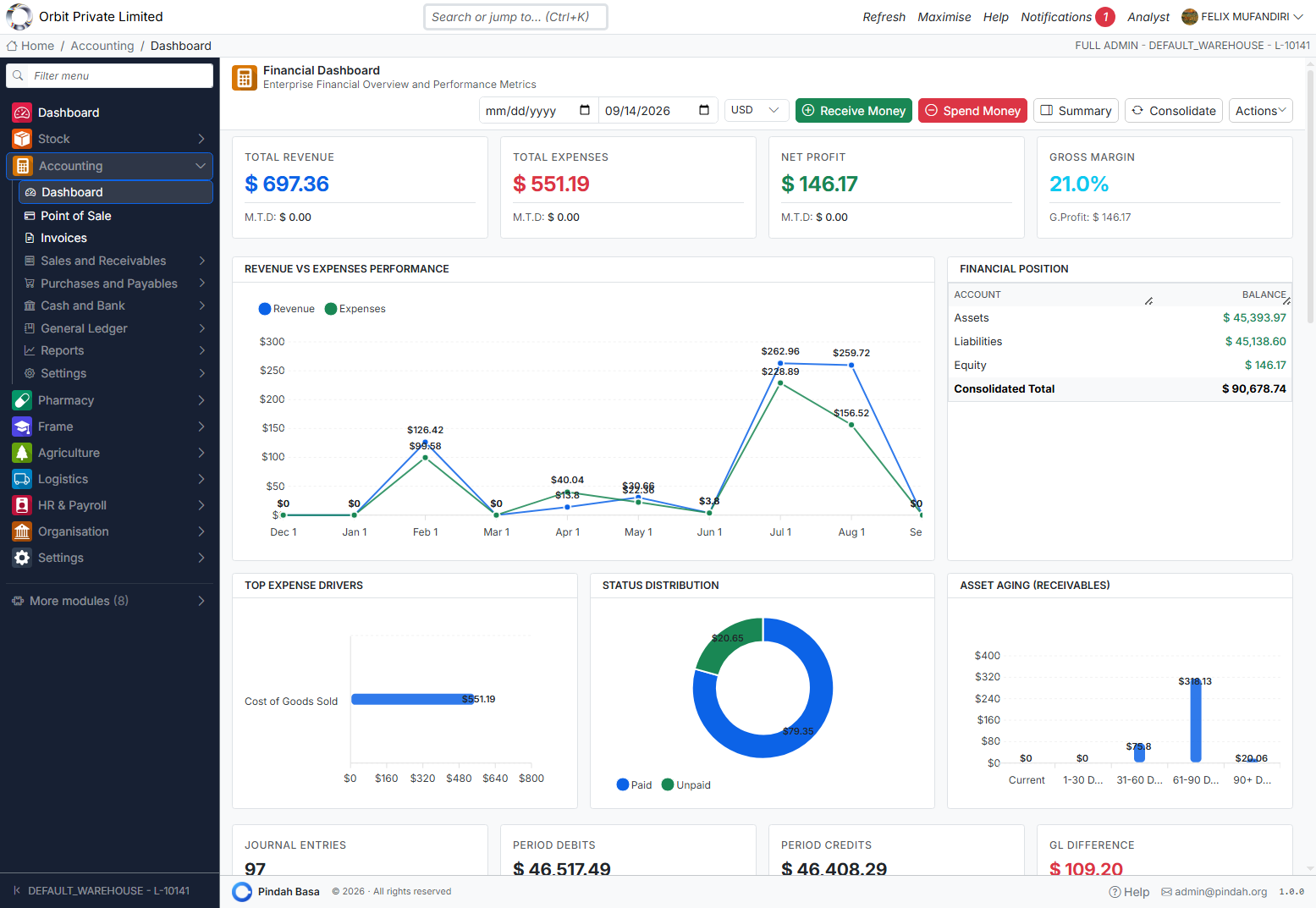
Financial Dashboard
Path: Accounting → Dashboard
URL: /accounting/dashboard
What you see
For the selected date range and currency:
| KPI | Meaning |
|---|---|
| Total Revenue | Income in the period |
| Total Expenses | Costs in the period |
| Net Profit | Revenue minus expenses |
| Gross Margin | Profitability after direct costs |
Also typically shown:
- Revenue vs Expenses trend chart
- Financial position (Assets / Liabilities / Equity)
- Top expense drivers
- Invoice status distribution (paid vs unpaid)
- Receivables aging (current, 30, 60, 90+ days)
- Journal count, period debits/credits, GL difference warning when unbalanced
Controls
| Control | Purpose |
|---|---|
| Date range | Filter KPIs and charts |
| Currency | Report currency (e.g. USD, ZWL) |
| Receive Money | Open cash receipt form |
| Spend Money | Open cash payment form |
| Summary | Condensed period summary |
| Consolidate | Backfill missing sales journals |
| Actions | Shortcuts (Import Bank Statement, statements, CoA, journals, invoices, customers, …) |
Initial Accounting Setup
Complete this sequence before going live.
Step 1 — Chart of accounts
Go to Accounting → General Ledger → Chart of Accounts.
- Add account, or Import, or Initialise defaults, or apply a CoA Template
- Ensure you have Cash, AR, AP, Inventory, Sales Revenue, COGS, VAT accounts as needed
Step 2 — System accounts
Go to Settings → System Accounts and map at least:
| Key | Typical account |
|---|---|
CASH |
1100 — Cash |
AR_CONTROL |
1200 — Accounts Receivable |
AP_CONTROL |
2100 — Accounts Payable |
INVENTORY |
1300 — Inventory |
SALES_REVENUE |
4100 — Sales Revenue |
COGS |
5100 — Cost of Goods Sold |
VAT_OUTPUT / VAT_INPUT |
VAT control accounts |
FX_GAIN / FX_LOSS |
Required for FX revaluation |
Without Cash, Receive Money, Spend Money, and bank import commit cannot post.
Step 3 — Fiscal year
Go to Fiscal Periods → New fiscal year. Set name, start date, period count, period length (Month / Quarter), and retained earnings account.
Step 4 — Supporting masters
- Currencies — base currency + FX rates (optionally retrieve from RBZ)
- Payment Methods — each method needs a Settles Into account
- Tax Codes — VAT15, EXEMPT, IMTT, WHT, etc.
- Banks — bank name, account number, branch, currency
- Customers — client directory
Step 5 — Stock prerequisites
Ensure Locations and Tills exist in Stock. POS requires a till.
Step 6 — Smoke test
- Post a small Spend Money expense.
- Run a test POS sale.
- Run Consolidate if needed.
- Open Trial Balance — debits should equal credits.
- Open Ledger Health — resolve any Fail rows.
Chart of Accounts
Path: Accounting → General Ledger → Chart of Accounts
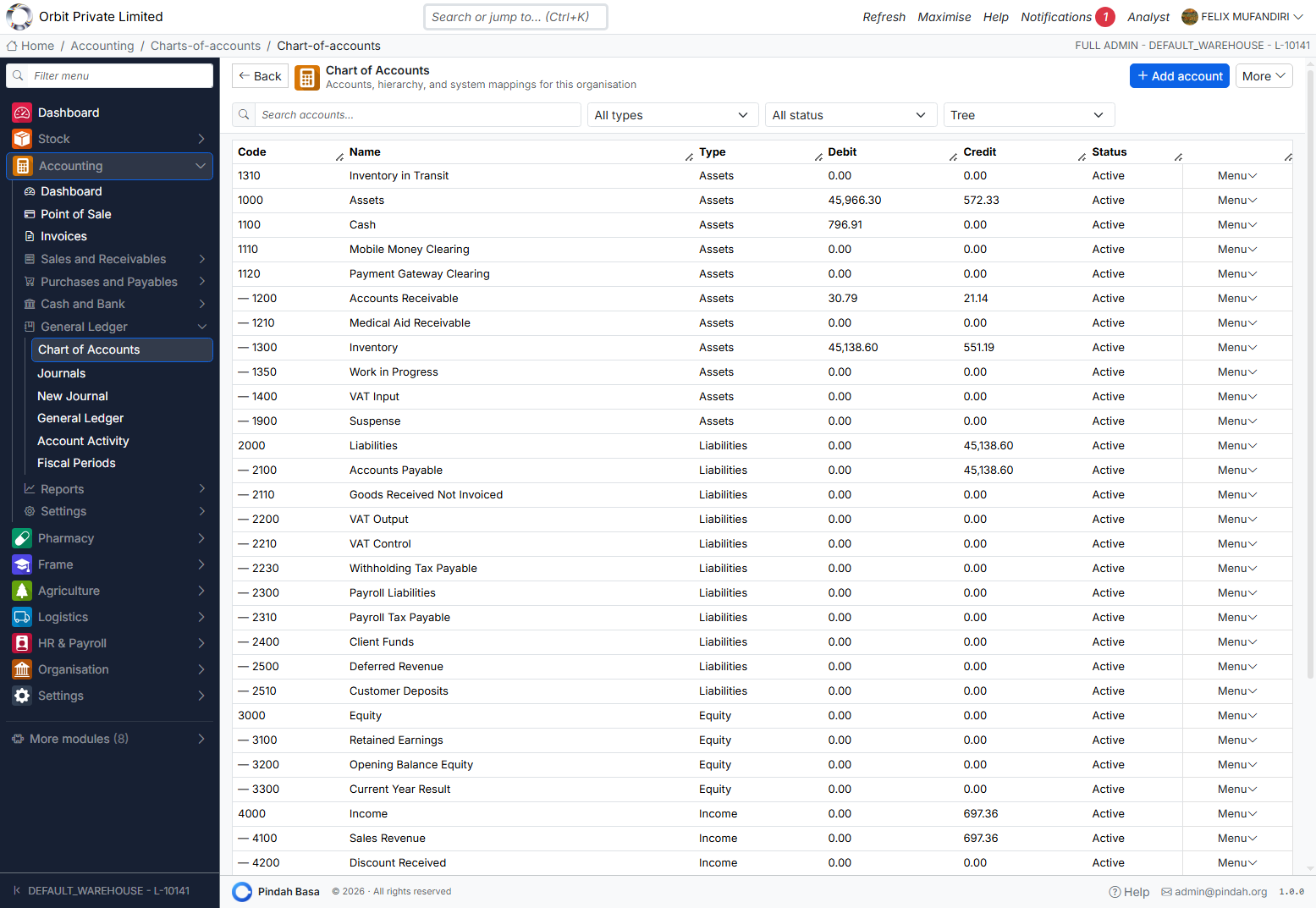
List and filters
- Search by code or name
- Filter by type (Assets, Liabilities, Equity, Income, Expenses)
- Filter by Active / Inactive
- View as Tree (hierarchy) or Flat
Columns: Code, Name, Type, Debit, Credit, Status, Menu.
Add / edit an account
Click + Add account (or row → Edit). Fields include:
| Field | Notes |
|---|---|
| Code | Unique per organisation (suggested ranges: Assets 1000–1999, … Expenses 5000–7999) |
| Name | Display name |
| Type / Subtype | Must match parent type |
| Parent | Optional hierarchy |
| Cash-flow class | CASH, OPERATING, INVESTING, FINANCING, NONE |
| Control type | AR, AP, INVENTORY, TAX, BANK, CASH, WIP, SUSPENSE |
| Currency | Optional account currency |
| Default tax code | Optional |
| Flags | Postable, Active, Allow manual posting, Monetary, Reconcilable, Require location/department/project |
Row actions
| Action | When to use |
|---|---|
| Edit | Change name, flags, parent (type locked once journal lines exist) |
| Usage | See where the account is used (blocks unsafe delete) |
| Activate / Deactivate | Soft-retire without deleting |
| Merge | Move all lines from source → target (same type; source must have no children) |
| Delete | Only if unused |
More menu
Import, Export, Initialise defaults, link to Templates.
System Accounts
Path: Accounting → Settings → System Accounts
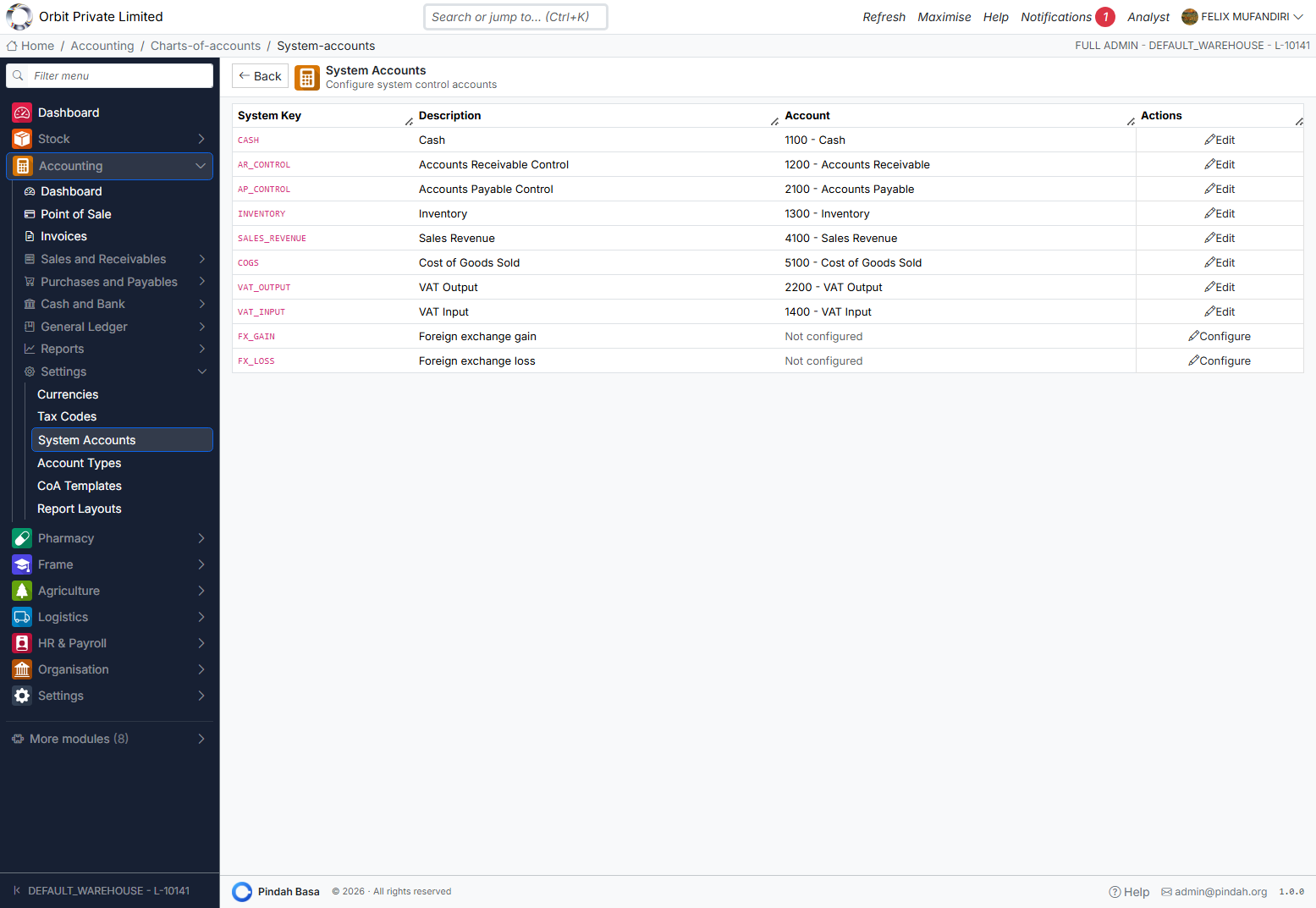
Map each System Key to a chart account. Keys shown as “Not configured” must be configured before the related feature works (e.g. FX revaluation needs FX_GAIN and FX_LOSS).
Use Configure / Edit / Save / Cancel per row.
Journals
Path: Accounting → General Ledger → Journals
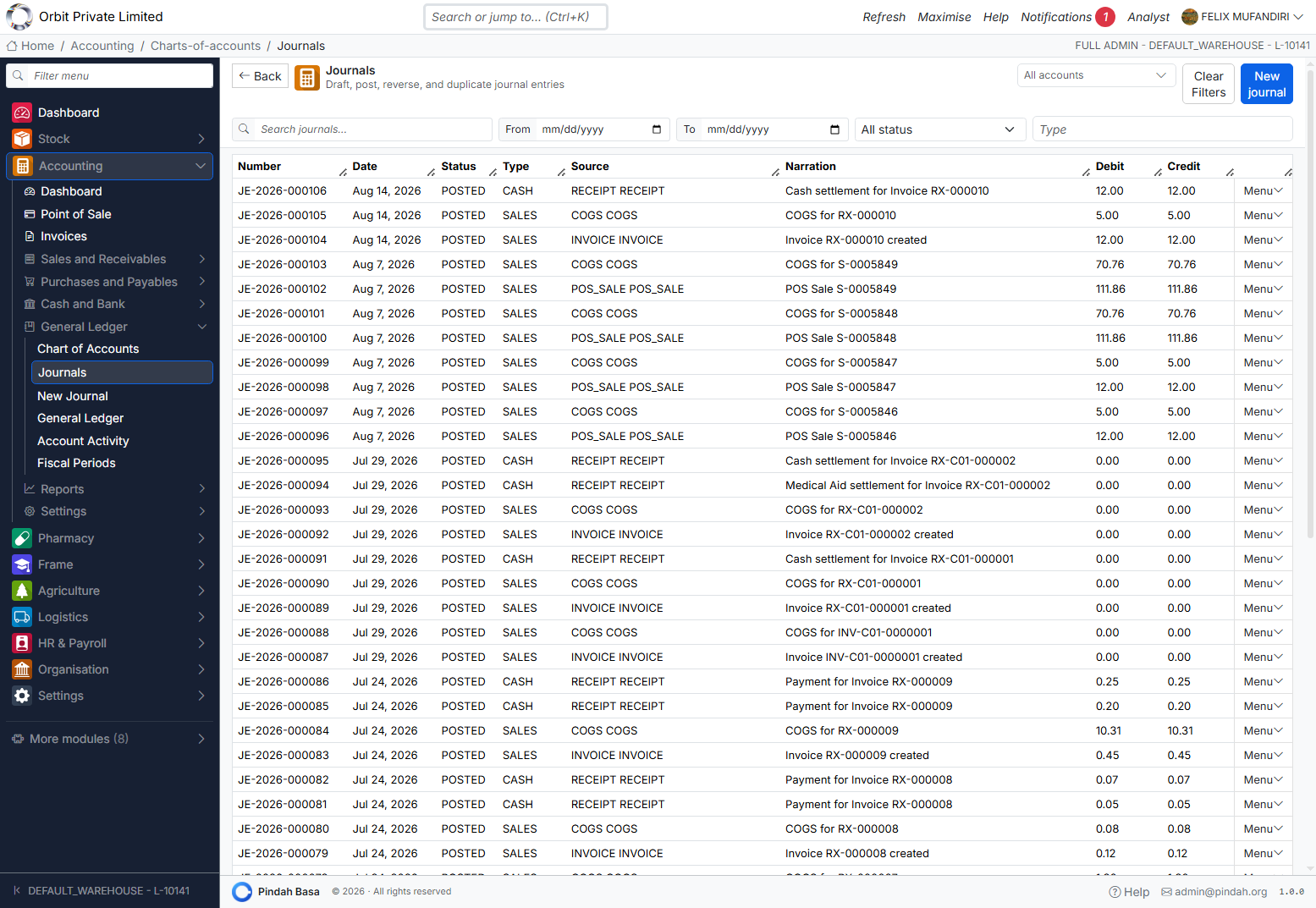
List
Filter by account, date range, status (Draft / Posted / Reversed), and type. Search by number or narration.
Typical columns: Number (JE-YYYY-######), Date, Status, Type (CASH, SALES, GENERAL, …), Source, Narration, Debit, Credit, Menu.
Row actions
| Status | Actions |
|---|---|
| DRAFT | View, Post, Duplicate, Delete |
| POSTED | View, Reverse, Duplicate |
| REVERSED | View (original voided; reversal exists) |
New journal
Path: Accounting → General Ledger → New Journal
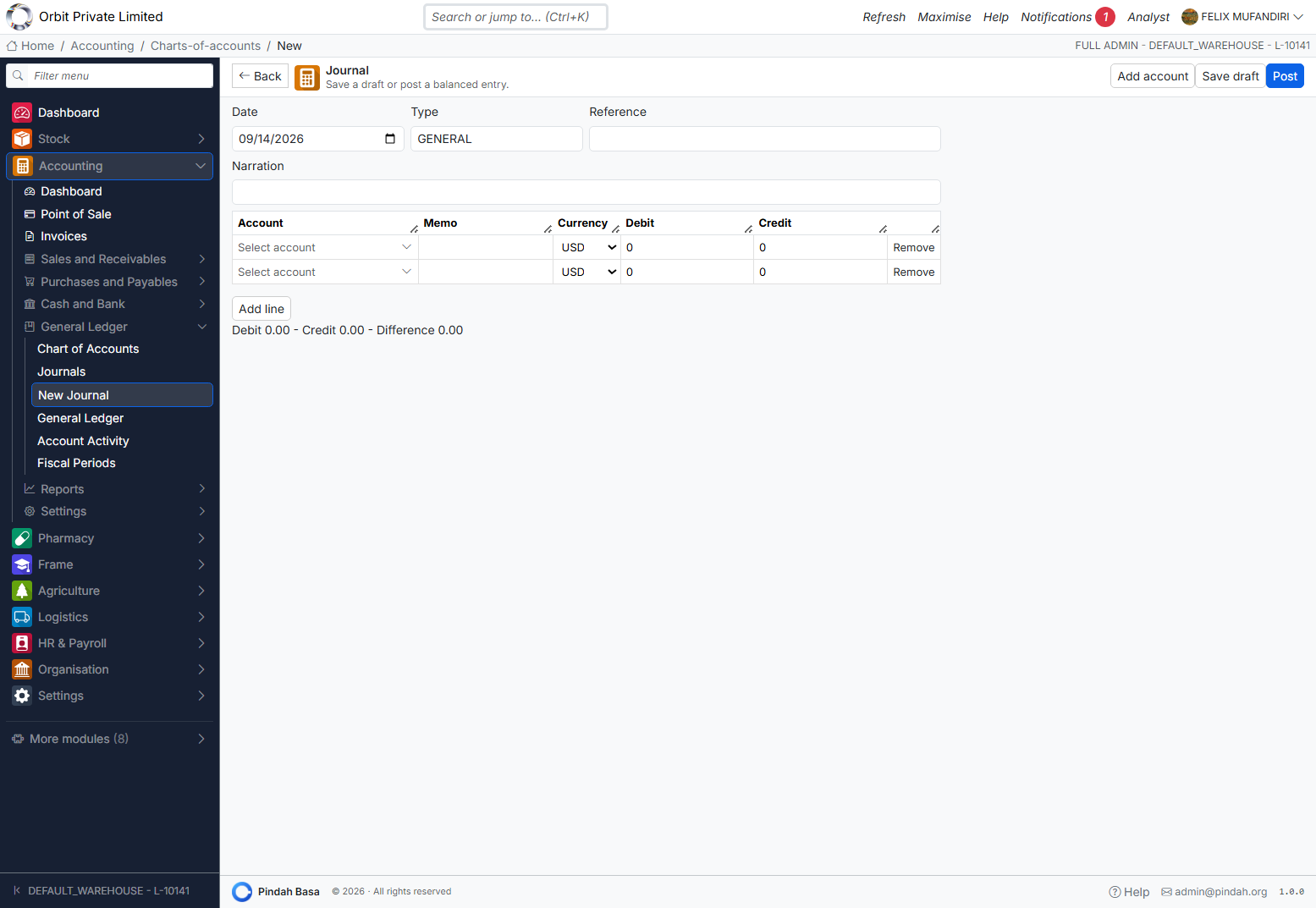
- Set Date, Type (default
GENERAL), Reference, Narration. - Add line for each side: Account, Memo, Currency, Debit or Credit.
- Watch totals: Debit − Credit − Difference must be 0.00 to post.
- Save draft (may be unbalanced until you finish) or Post.
- Optional: Add account shortcut, Duplicate, Reverse (on existing posted journals).
Rules that block posting:
- Debits must equal credits (2 decimal places)
- Accounts must be active and postable
- A fiscal period must cover the date and must not be LOCKED
- Soft-closed / control accounts may require elevated permissions
General Ledger and Account Activity
General Ledger
Path: Accounting → General Ledger → General Ledger
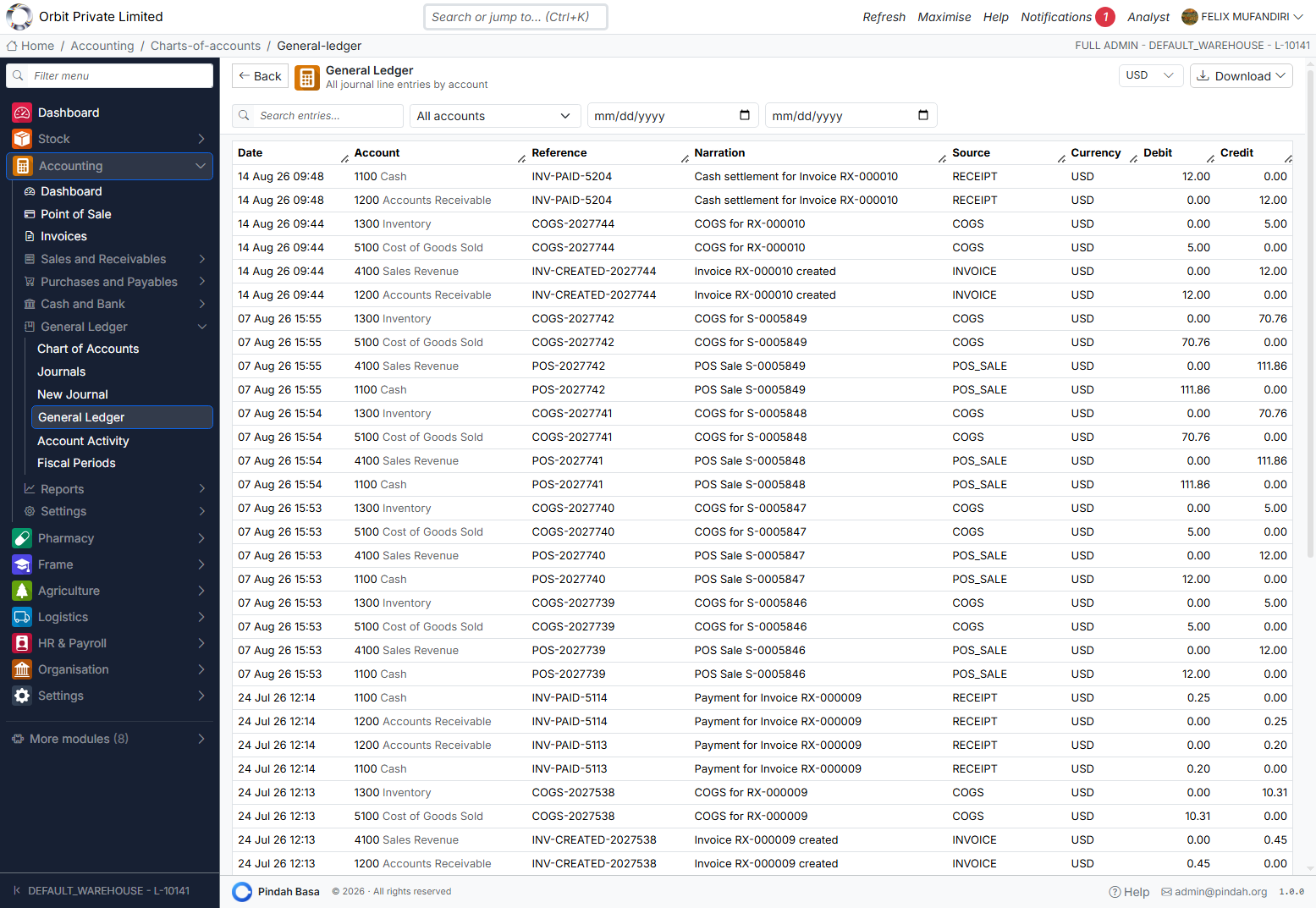
Every journal line by account for the selected filters. Columns include Date, Account, Reference, Narration, Source (POS_SALE, INVOICE, RECEIPT, COGS, …), Currency, Debit, Credit.
- Search entries
- Filter by account and date range
- Download PDF or Excel
Account Activity
Path: Accounting → General Ledger → Account Activity
- Select one account and a date range.
- Click Generate.
- Review opening balance → movements → closing balance.
Use this for bank reconciliation and audit of a single account.
Fiscal Periods
Path: Accounting → General Ledger → Fiscal Periods
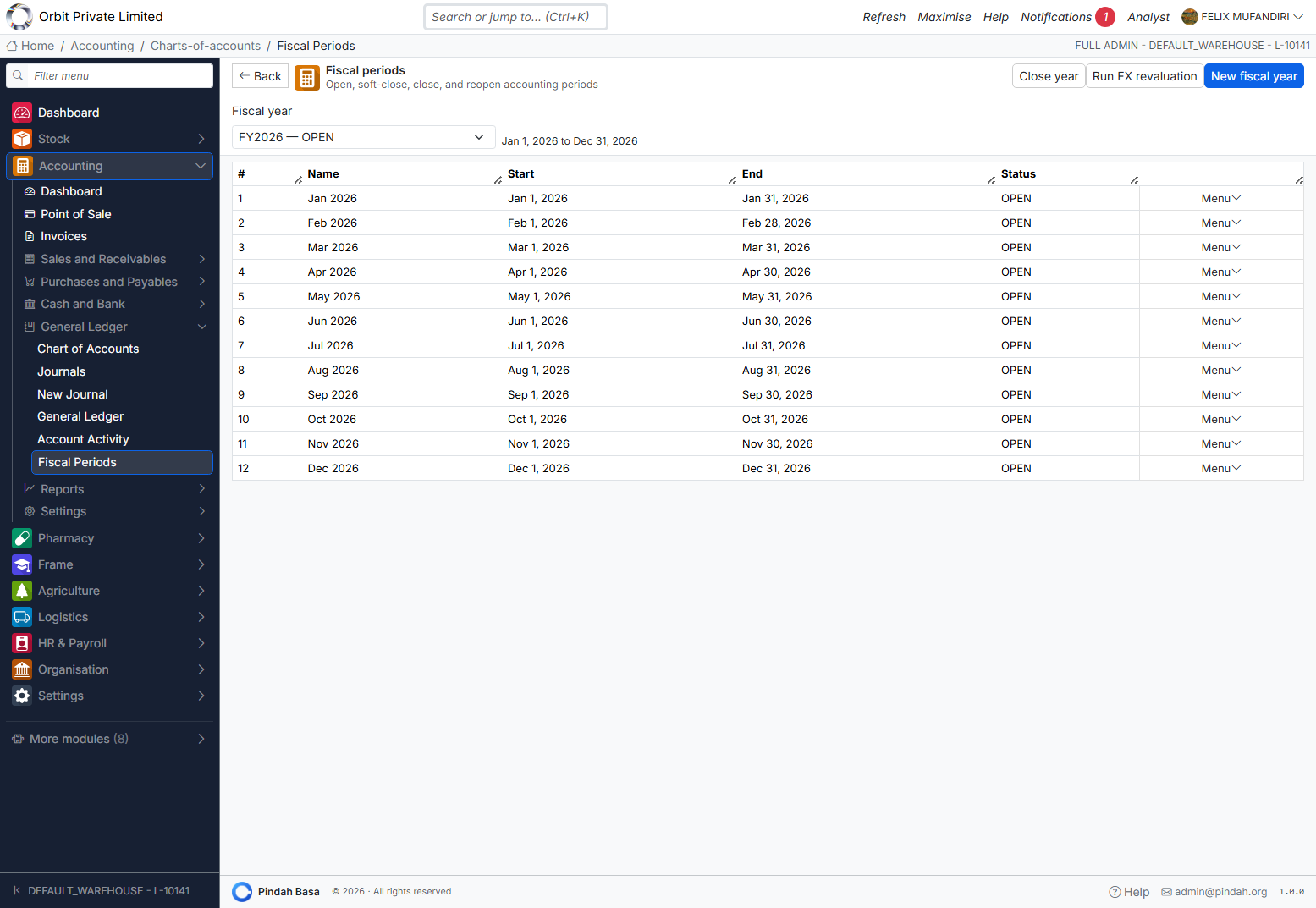
Year header actions
| Action | Purpose |
|---|---|
| New fiscal year | Create year + monthly/quarterly periods |
| Run FX revaluation | Post FX gain/loss as of a date / period end |
| Close year | When all periods are closed — P&L sweep to retained earnings; periods become LOCKED |
Period statuses
OPEN → SOFT_CLOSED → CLOSED → LOCKED (after year close)
         ↑ reopen with reason ↑
Per-period menu
| Action | Effect |
|---|---|
| Checklist | Month-end readiness checks (canClose) |
| Run FX | FX revaluation for that period |
| Soft close | Restrict posting |
| Close | Hard close (checklist must pass) |
| Reopen | Requires a reason |
Close checklist typically checks: no open posting failures, suspense/rounding clean, entries balance, AR/AP/inventory recon, GRNI, FX reval done, no drafts.
Receive Money and Spend Money
Cash and Bank is the day-to-day cash book in Pindah Basa: ad-hoc inflows and outflows that are not tied to a customer invoice or supplier bill. Posted lines appear in Journals, General Ledger, and Account Activity for the Cash system account (and for bank lines after statement import).
Receive Money
Path: Accounting → Cash and Bank → Receive Money
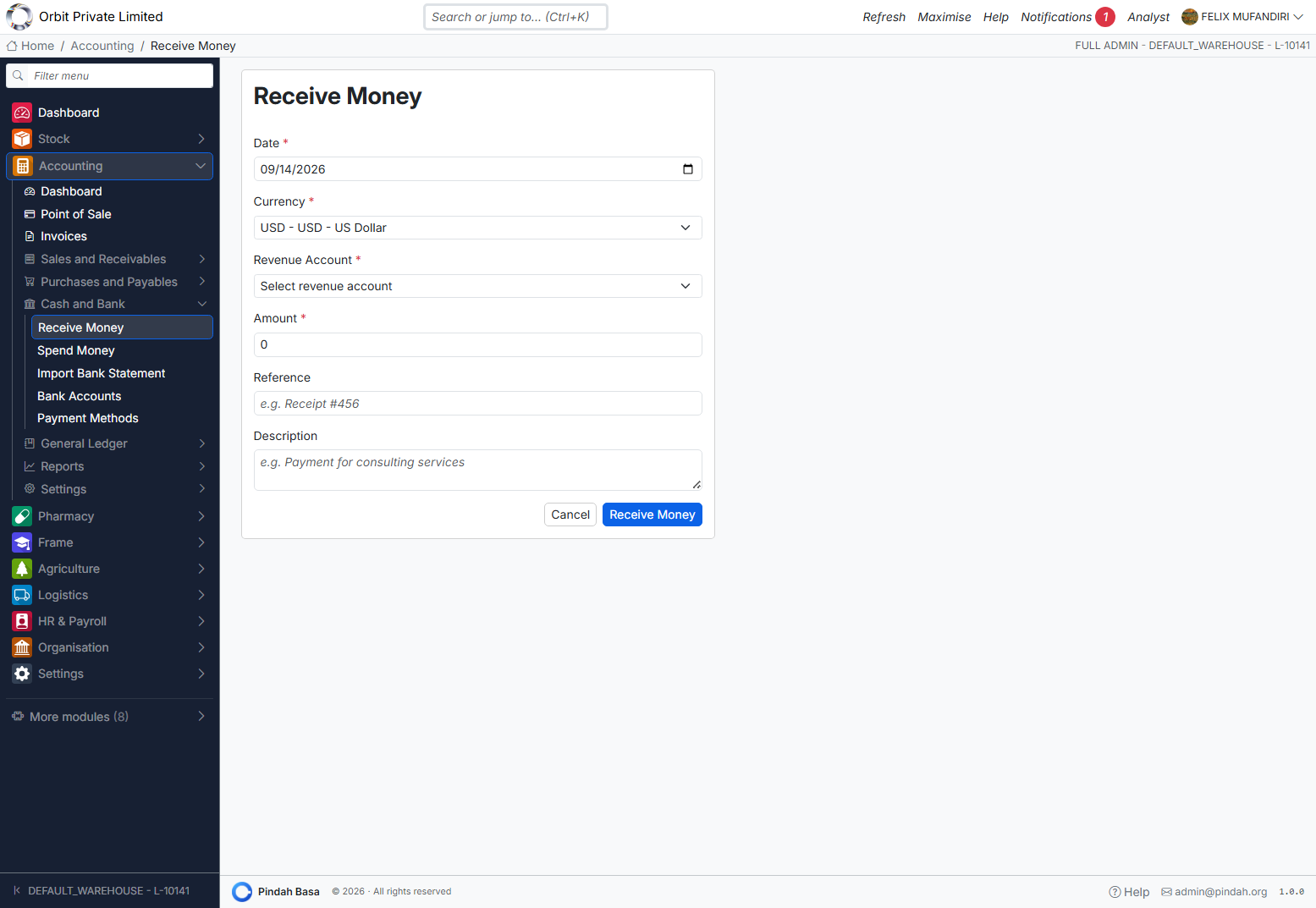
| Field | Required | Purpose |
|---|---|---|
| Date | Yes | When money was received |
| Currency | Yes | Transaction currency |
| Revenue Account | Yes | Income account to credit |
| Amount | Yes | How much |
| Reference | No | Receipt / transfer ref |
| Description | No | Notes |
Click Receive Money. System debits Cash (system account) and credits the revenue account.
Use for: consulting fees, deposits, ad-hoc income not tied to an invoice.
Spend Money
Path: Accounting → Cash and Bank → Spend Money
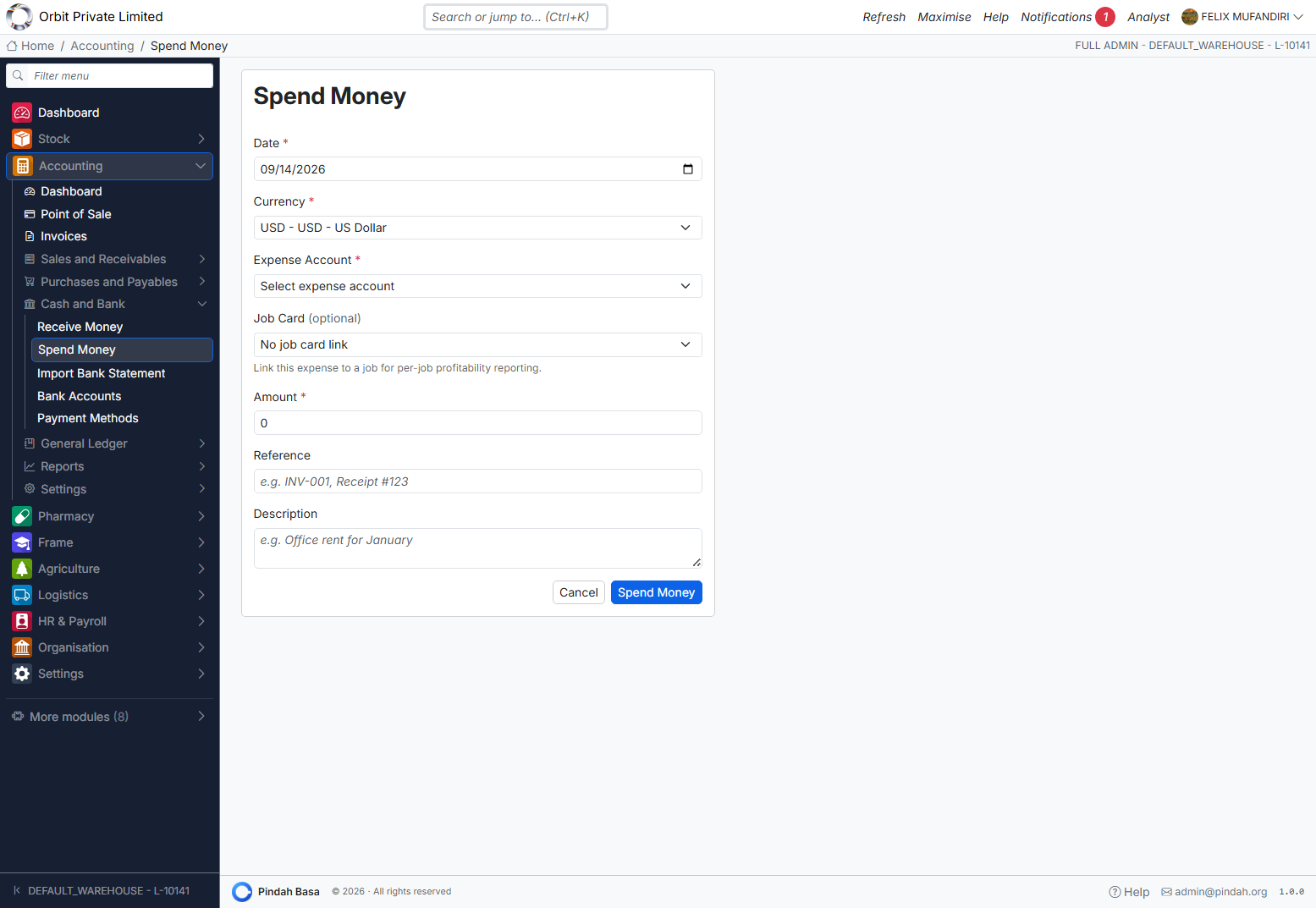
Same pattern for outflows: Expense Account, optional Job Card link for job profitability, Amount, Reference, Description → Spend Money.
Posted effect: Dr Expense / Cr Cash (Cash system account).
Use for: rent, utilities, petty cash, fuel, and other general expenditures that are not on a purchase order or supplier bill.
| Goal | How to record it |
|---|---|
| Petty cash / till expense | Spend Money → pick expense account |
| Bank payment for an expense (not a supplier AP bill) | Prefer Import Bank Statement and map the line to the expense account, or post a manual journal Dr Expense / Cr Bank |
| Supplier invoice payment | Do not use Spend Money — use Pay Suppliers so AP clears correctly |
To review cash movements like a cash book register: open Account Activity for the Cash (and bank) accounts, or filter Journals by date.
Import Bank Statement
Path: Accounting → Cash and Bank → Import Bank Statement
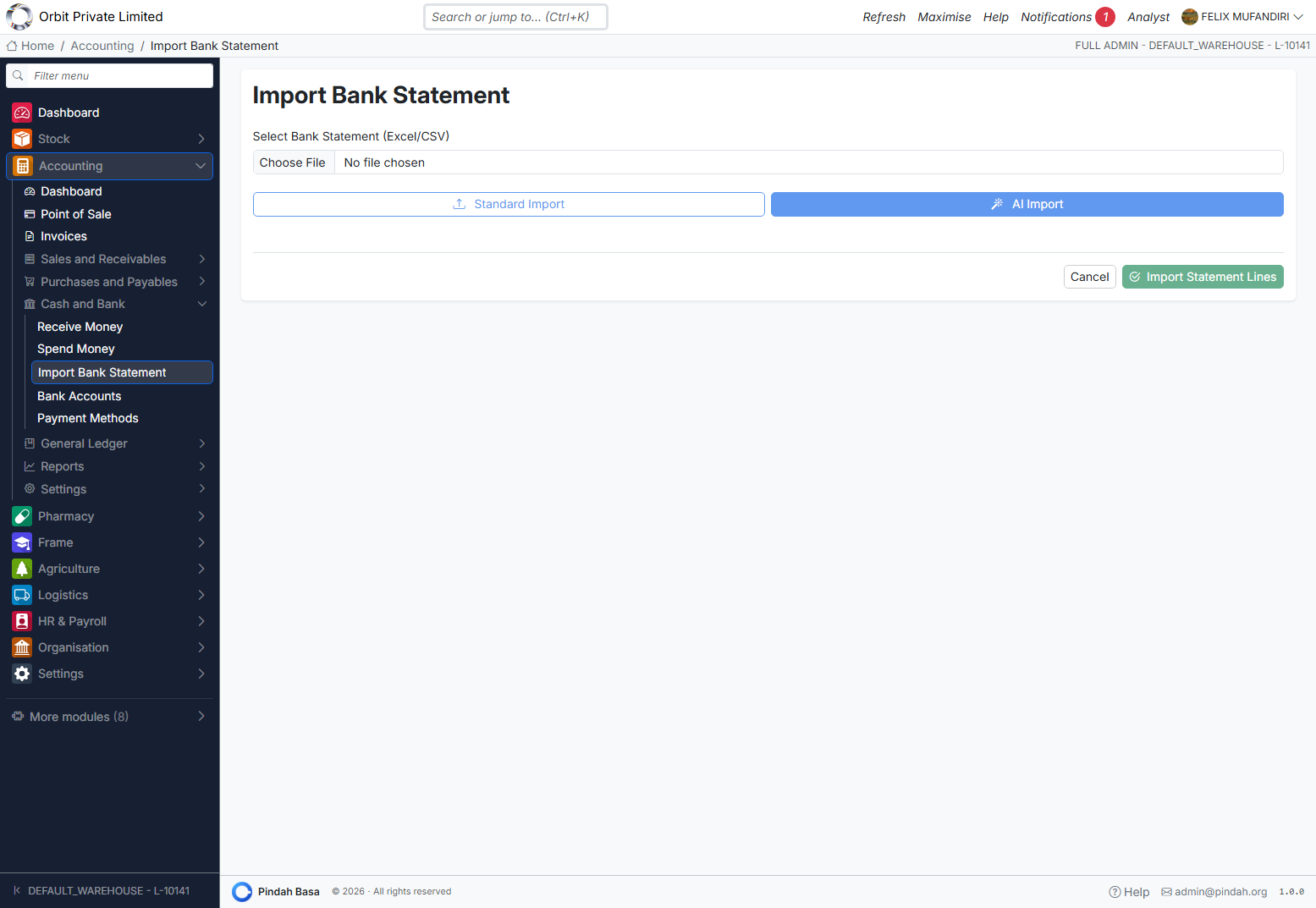
- Choose File (Excel/CSV from your bank).
- Pick Standard Import or AI Import.
- Preview parsed lines (date, description, debit/credit).
- Assign accounts to debit (expense) and credit (income) rows — apply in bulk where offered.
- Click Import Statement Lines — each mapped line posts as a cash journal.
- Review in Journals / General Ledger.
Requires the CASH system account.
Banks and Payment Methods
Bank Accounts
Path: Accounting → Cash and Bank → Bank Accounts
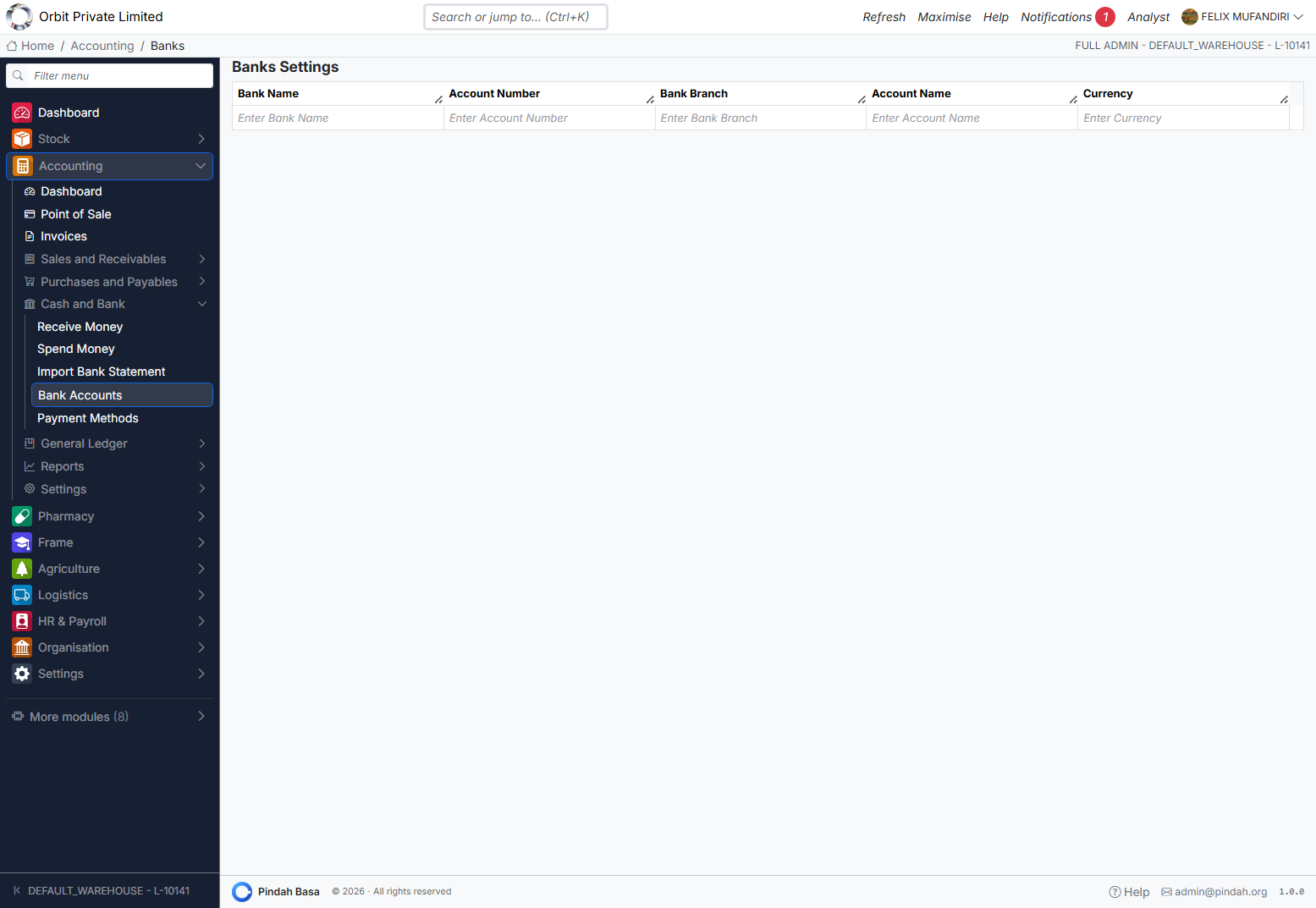
Inline master for Bank Name, Account Number, Branch, Account Name, Currency. Add a row and save; delete unused banks.
This is bank master data for statements — not a full reconciliation workspace. Reconciliation uses statement import + reconcilable CoA flags + Account Activity.
Payment Methods
Path: Accounting → Cash and Bank → Payment Methods
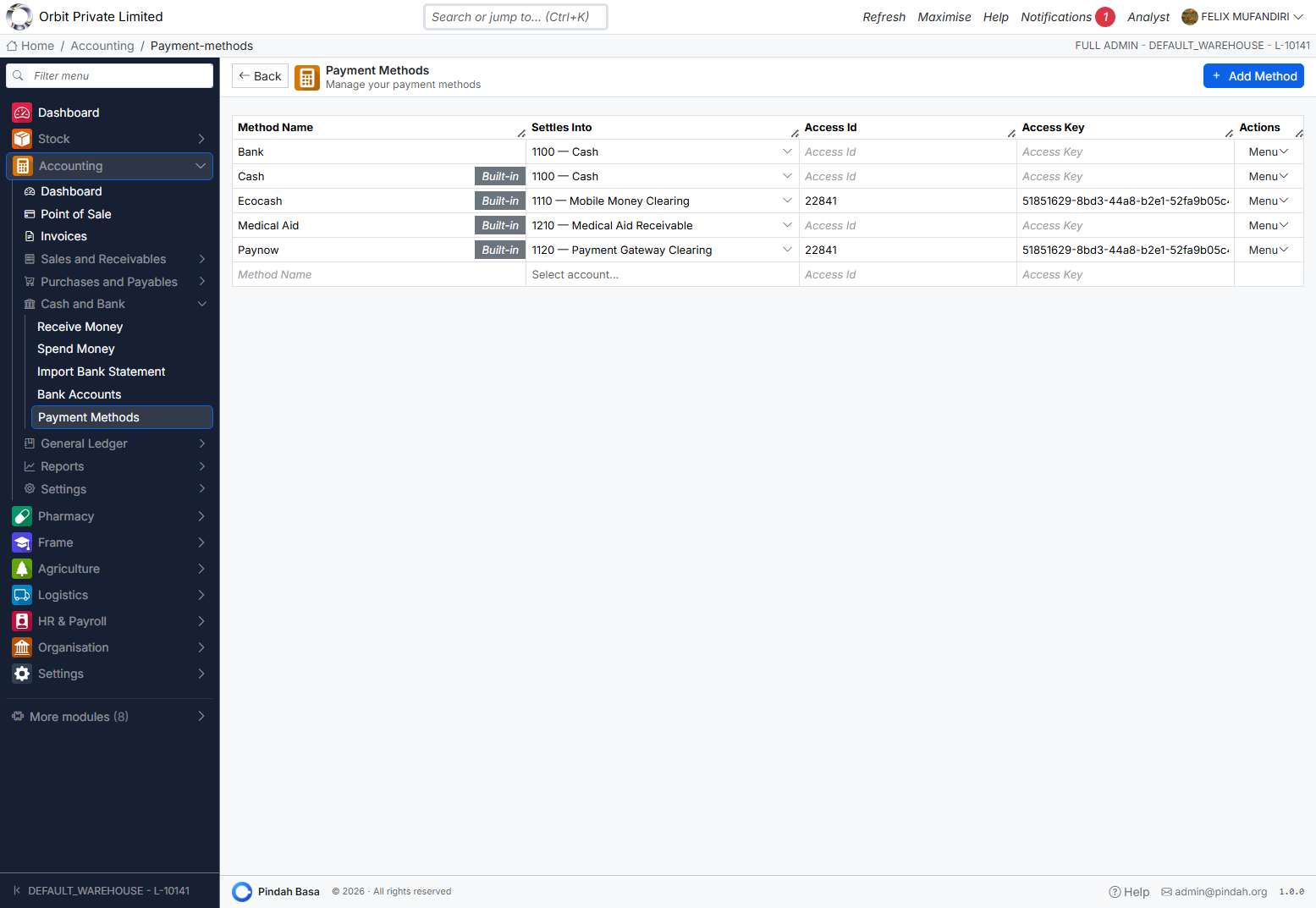
| Column | Purpose |
|---|---|
| Method Name | Cash, Ecocash, Paynow, Bank, Medical Aid, … |
| Settles Into | GL account the tender posts to |
| Access Id / Key | Gateway credentials where applicable |
| Built-in | System methods cannot be deleted |
Click + Add Method for custom tenders. Every method used at POS must have a valid Settles Into account or Ledger Health will fail.
Point of Sale
Path: Accounting → Point of Sale
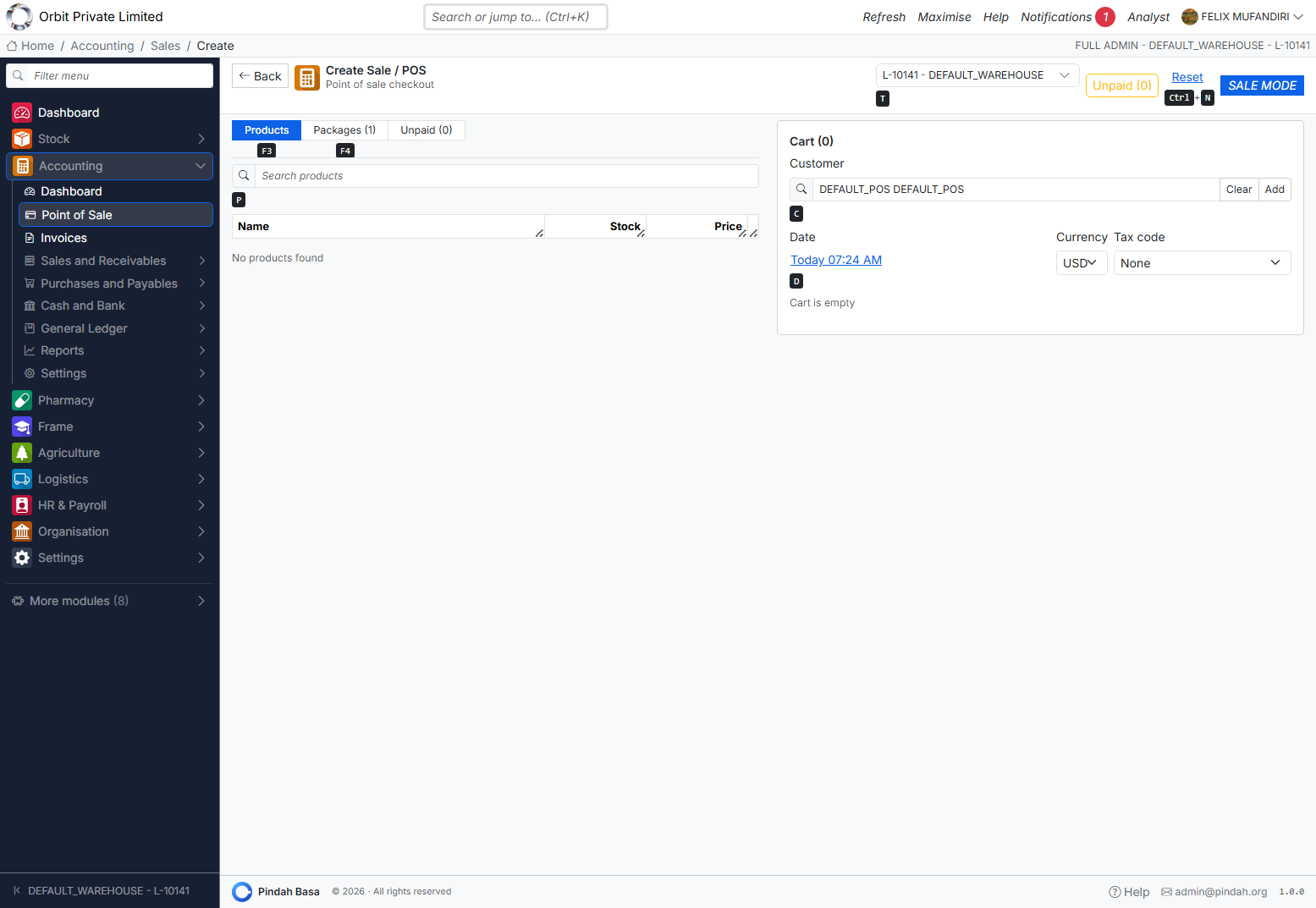
Before you sell
- Select Till / warehouse (required to load products).
- Confirm Customer (default walk-in customer is fine).
- Set Date, Currency, Tax code.
Selling
- Search products (F3) or packages (F4), or scan barcode.
- Build the cart — adjust quantities.
- Review totals.
- Complete in SALE MODE.
On completion: stock reduces, receipt available, sale appears in Sales Register, journals post (SALE_CASH + SALE_COST_RECOGNISED).
Issue / Transfer mode
From Stock menu Issue/Transfer or /accounting/sales/create/transfer — internal stock movement without a customer sale (creates a transfer request in Stock).
Sales Register
Path: Accounting → Sales and Receivables → Sales Register
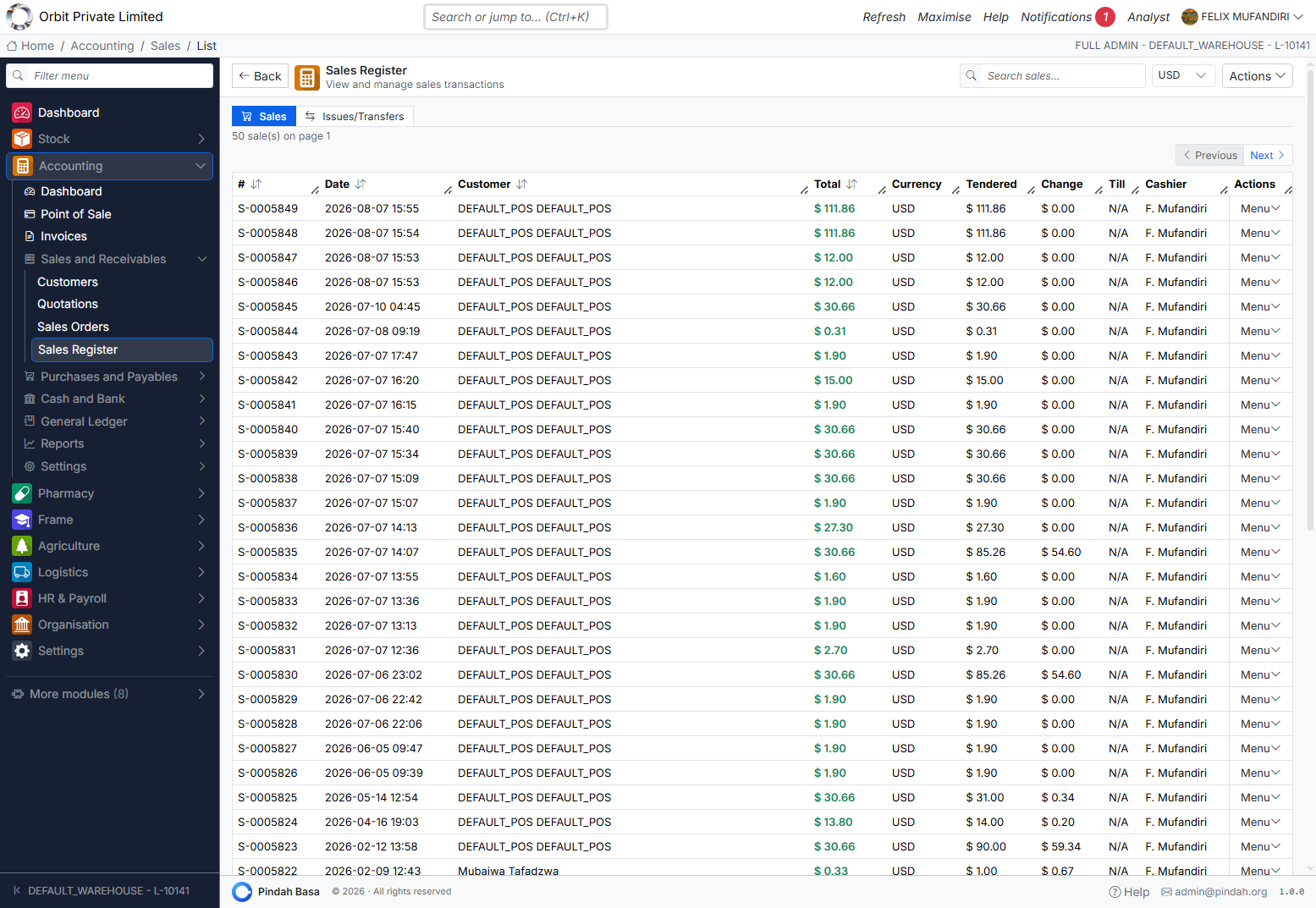
Tabs: Sales | Issues/Transfers.
Columns typically include sale number (S-########), Date, Customer, Total, Currency, Tendered, Change, Till, Cashier, Menu.
Open a sale for line detail, payment, and linked documents. Download or email receipts from the sale view.
Invoices
Path: Accounting → Invoices
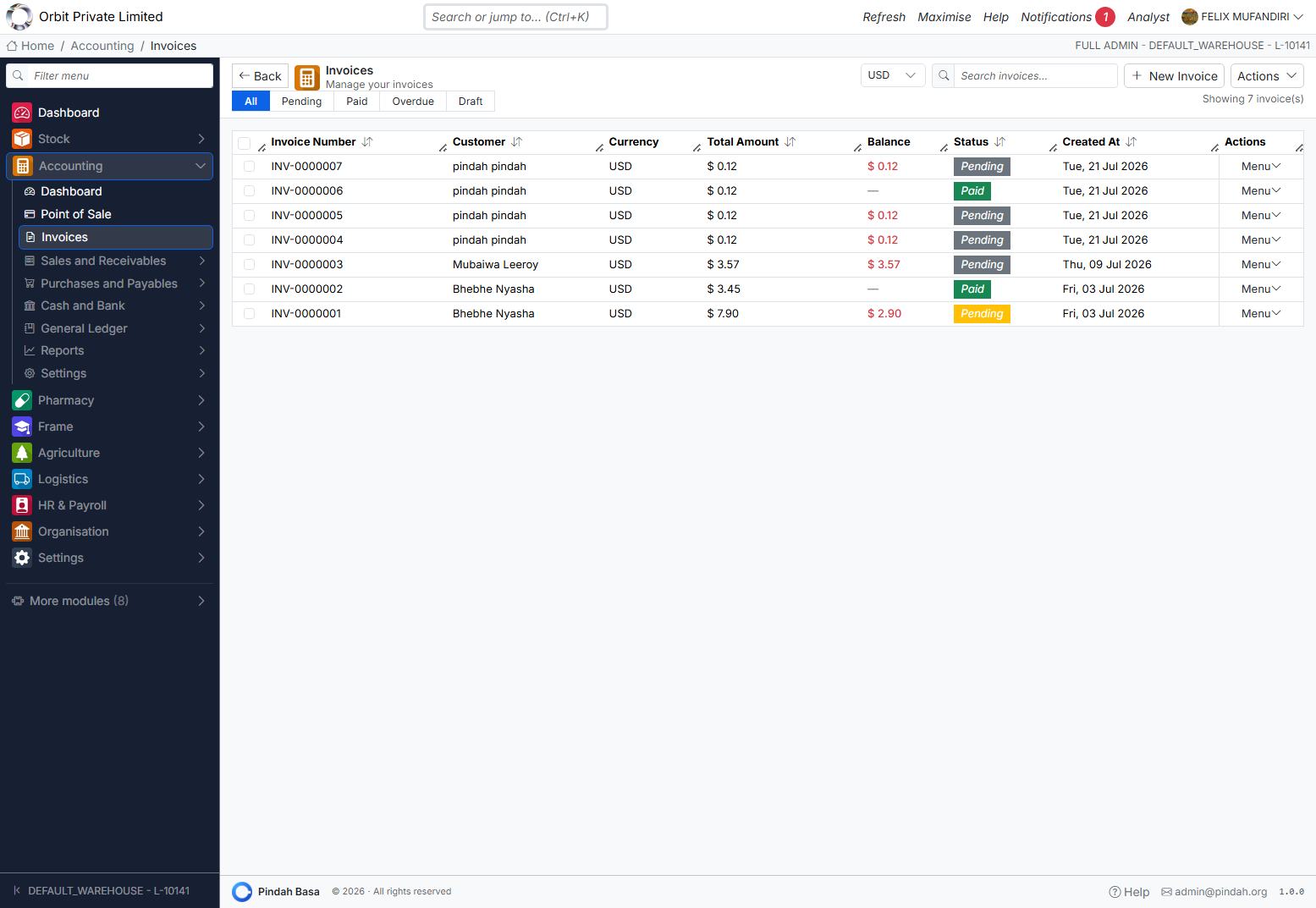
List filters
Tabs: All | Pending | Paid | Overdue | Draft
Also filter by currency and search. Invoice numbers look like INV-0000007.
Row / Actions menu
| Action | Purpose |
|---|---|
| View / Edit | Open invoice |
| Download PDF / Receipt | Customer documents |
| Duplicate | Copy as new invoice (new number) |
| Make Payment | Record receipt against balance |
| Email Invoice | Send to customer |
| Reverse Invoice | Cancel with accounting reversal |
| Issue Credit Note | Credit note document |
| Delete | Draft / permitted cases |
| Extract Fields / Import Invoices | Bulk tools under Actions |
Create invoice
Path: Accounting → Invoices → New Invoice
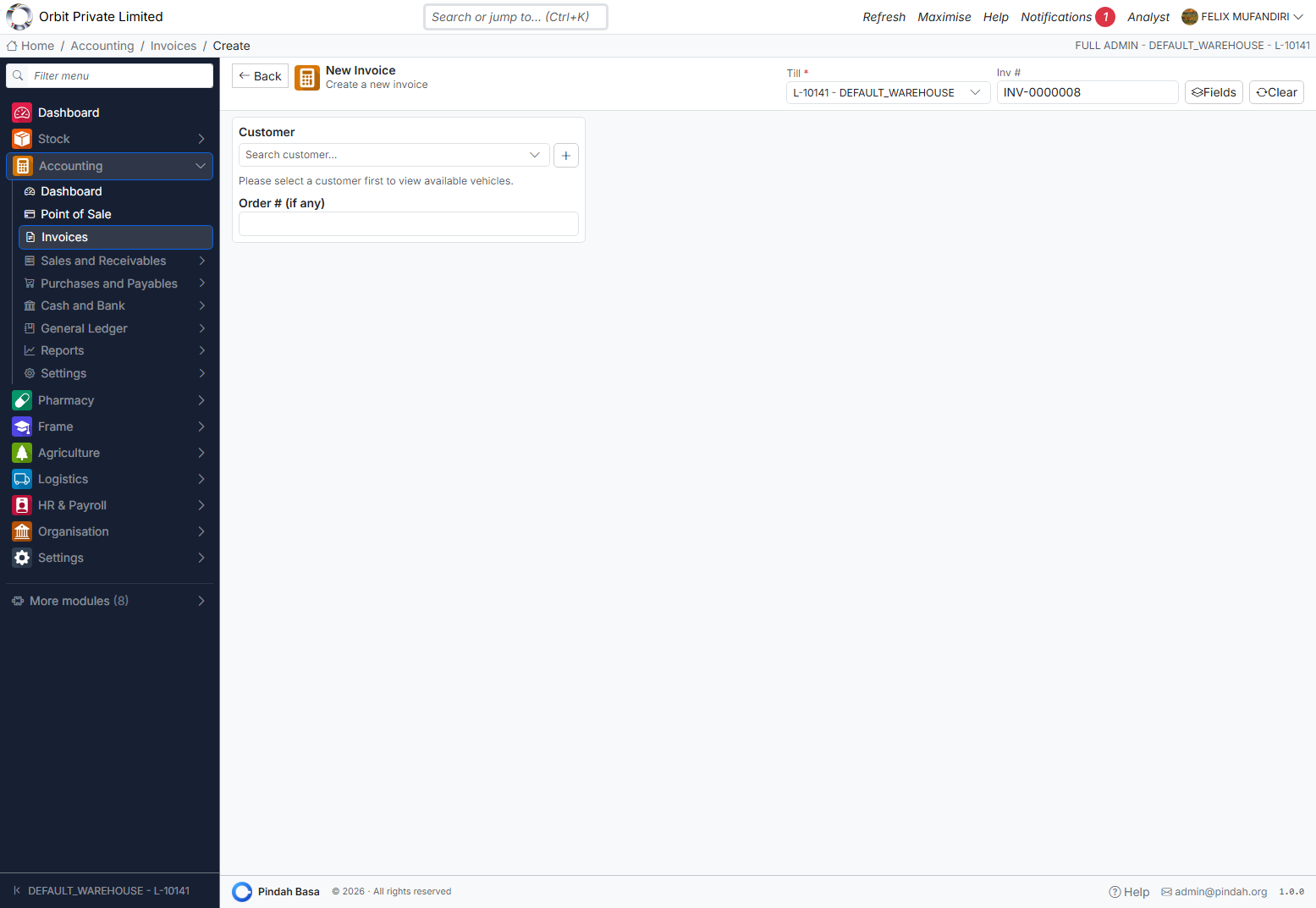
- Confirm Till.
- Note the Inv # — assigned immediately (e.g.
INV-0000008). Do not expect this number to change later. - Select Customer (Add Customer if needed).
- Optional vehicle / order link.
- Add line items (products or free-text), quantities, prices, tax.
- Set status: leave as Draft to hold without GL, or non-Draft to post revenue/COGS.
- Preview, then Create.
- Later: Make Payment, Email, Recurring, credit note / reverse as needed.
GL rule: Draft invoices do not hit the ledger. Leaving Draft posts SALE_INVOICED (+ COGS). Payments post SALE_PAYMENT_RECEIVED.
Quotations
Path: Accounting → Sales and Receivables → Quotations
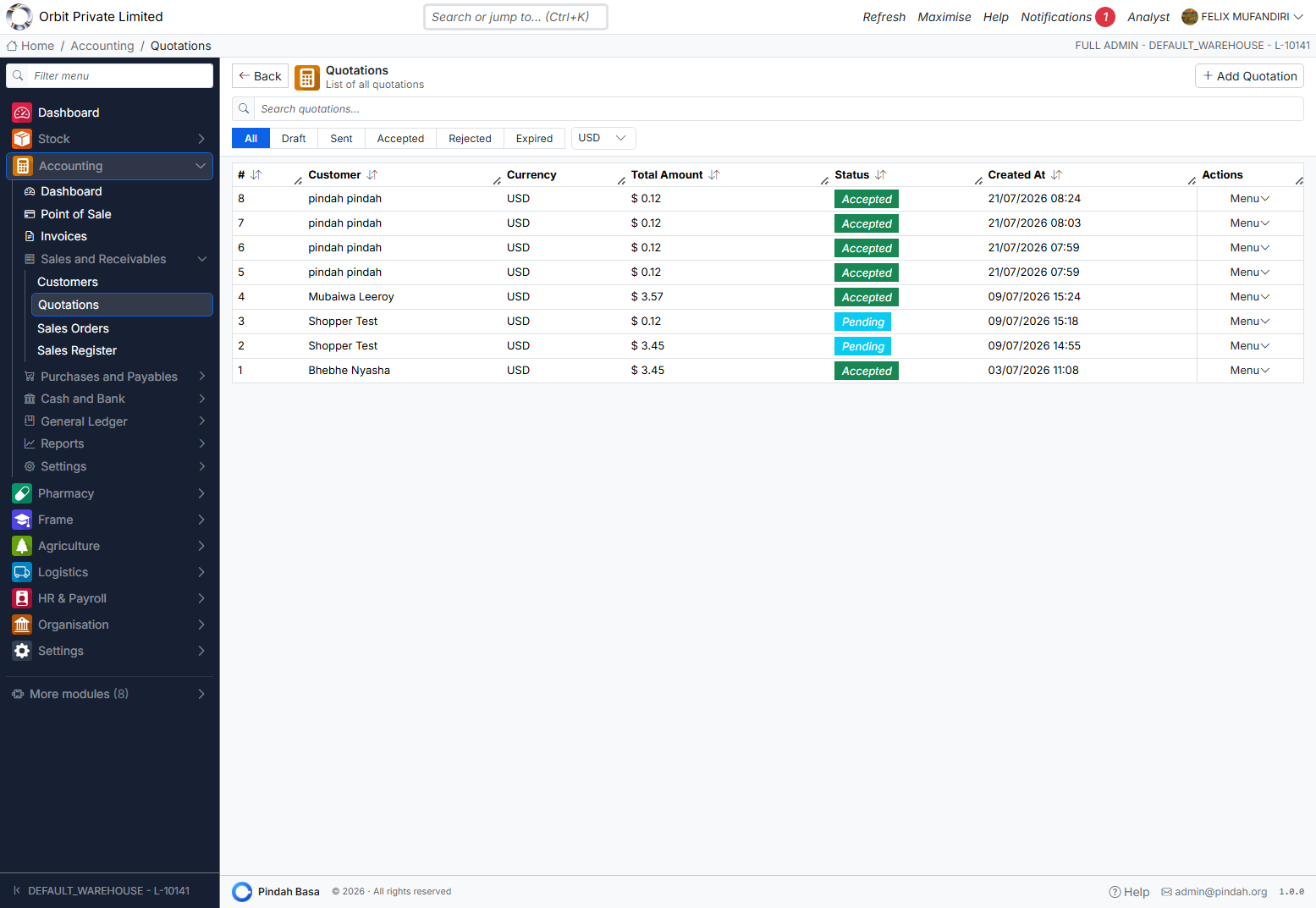
Status filters
All | Draft | Sent | Accepted | Rejected | Expired
Workflow
Draft → Sent/Pending → Accepted or Rejected (or Expired)
- Click + Add Quotation.
- Select customer and line items.
- Save as Draft while preparing; send PDF/email when ready.
- Mark Accepted or Rejected.
- Convert accepted quotes to invoices / orders as your process requires.
Quotations do not post to the GL until invoiced.
Sales Orders
Path: Accounting → Sales and Receivables → Sales Orders
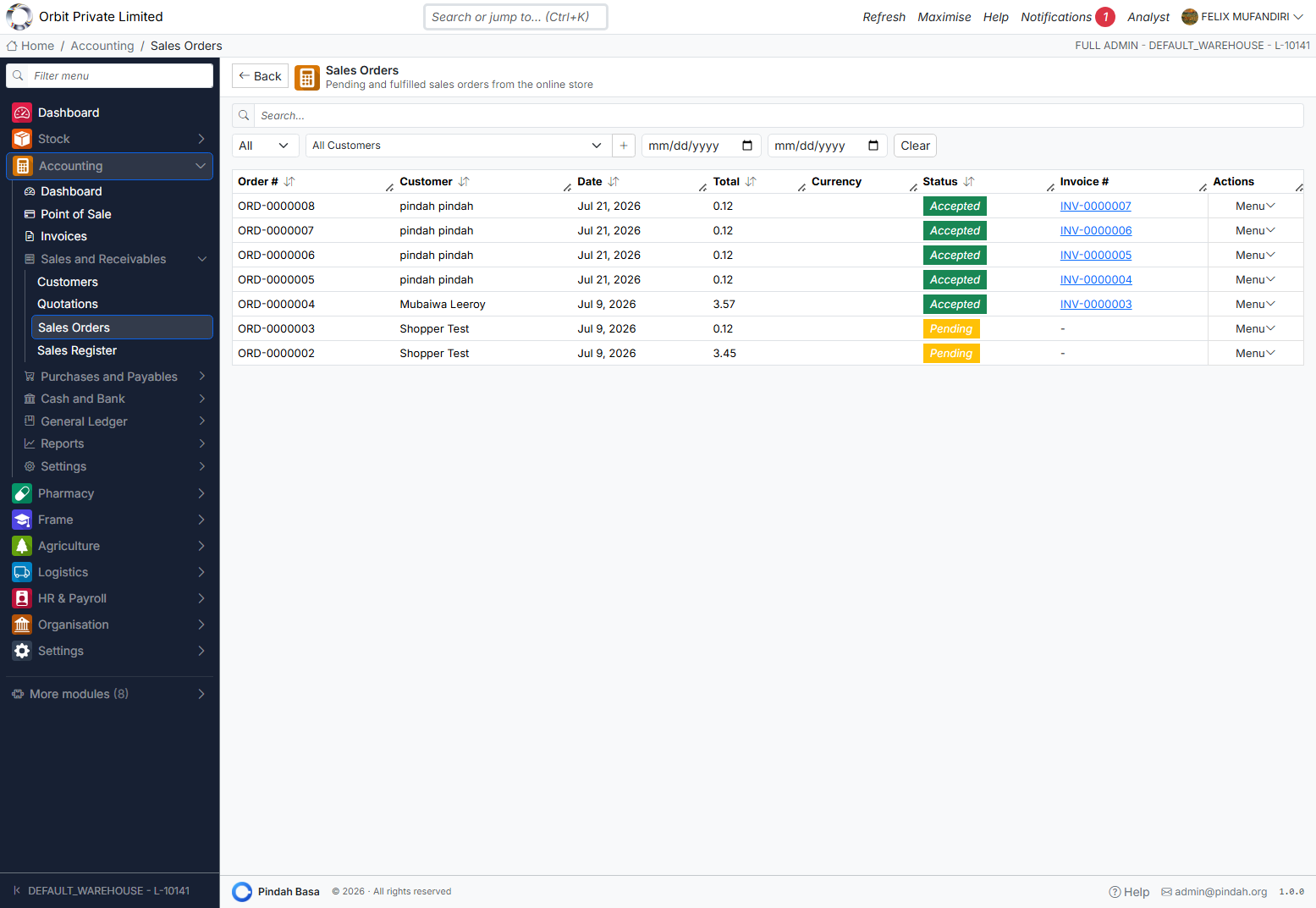
Filter by status (All / Pending / Accepted / Rejected), customer, and date range.
| Action | Purpose |
|---|---|
| View | Order detail |
| Fulfill | Fulfil pending order (stock + invoice path) |
| Reject | Decline pending order |
| View Invoice | Open linked INV- when created |
| Dispense script | Pharmacy script orders |
Order numbers look like ORD-########.
Purchase Orders
Path: Accounting → Purchases and Payables → Purchase Orders
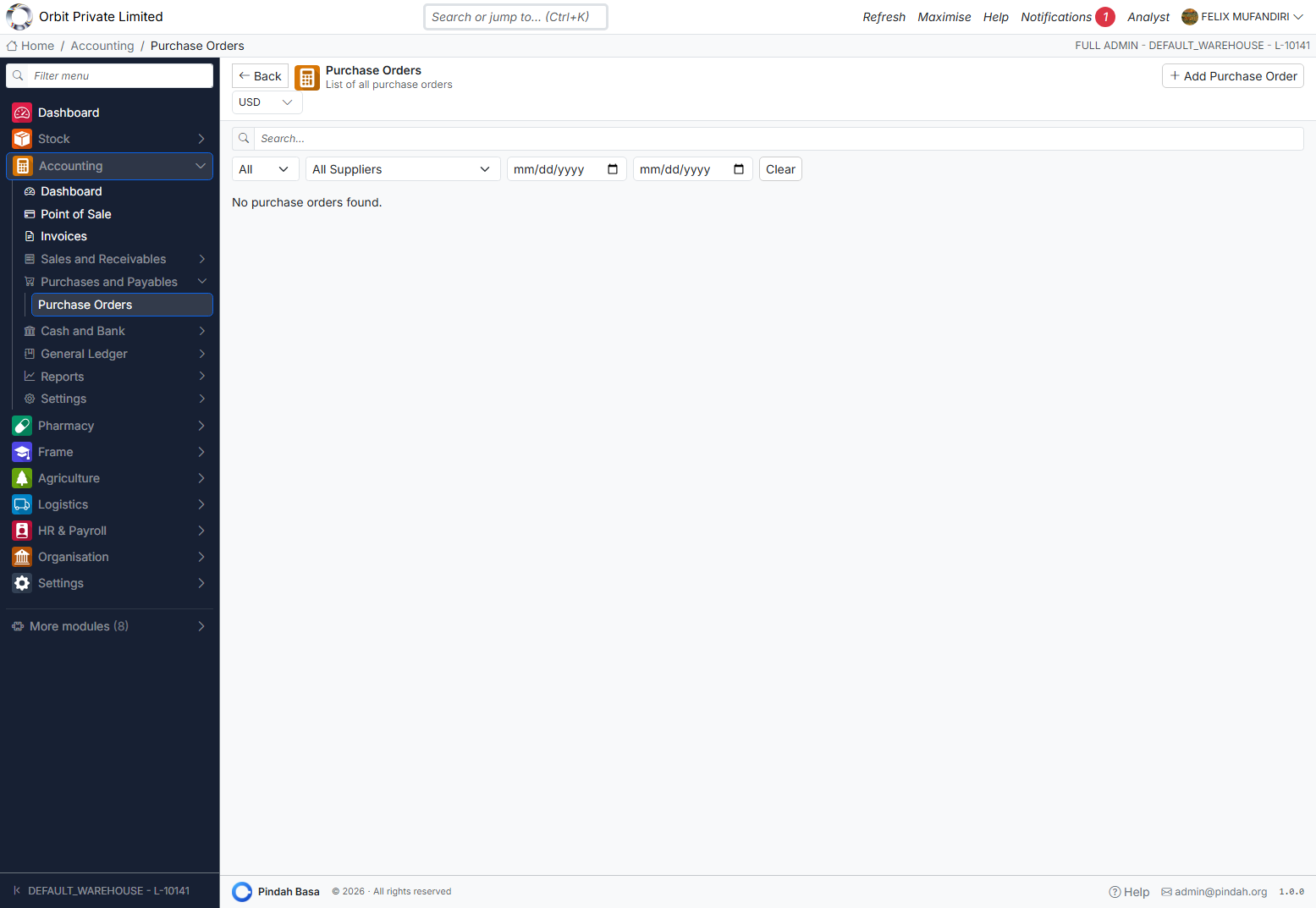
- + Add Purchase Order — supplier, lines, currency.
- Status: Draft → Pending (Send) → Accepted / Rejected.
- View / Download PDF.
- Delete only while Draft.
A PO is a commitment, not a stock receipt and not an accounts-payable entry. No inventory or AP journal posts when you create or send a PO.
Next steps after the PO is issued:
- Receive goods in Stock → Goods Receipts / Receive Stock (GRN).
- Capture the supplier bill under Purchases → Supplier Bills and approve it (creates AP).
- Pay under Purchases → Pay Suppliers.
- Check balances on Supplier Statement.
You can also create POs from Procurement (from an awarded RFQ or an approved requisition). Full sourcing detail is in the Procurement guide; the accounting outcomes for the whole cycle are summarised in Purchasing and Accounting Workflow.
Supplier Bills, Pay Suppliers, and Supplier Statement open from the same Purchases and Payables menu group.
Purchasing and Accounting Workflow
This section is the finance walkthrough for buying stock, paying suppliers, selling goods, and recording day-to-day cash expenses. Use it when you need a particular accounting result and want the shortest path in Pindah Basa.
End-to-end purchase-to-pay
| Stage | What you do | Where | Accounting effect |
|---|---|---|---|
| 1. Get vendor quotes | Create an RFQ, invite suppliers, record responses, award the best bid | Procurement → RFQs | None — quotes are sourcing only |
| 2. Issue purchase order | Create/send a Purchase Order (directly, from RFQ award, or from requisition) | Accounting → Purchase Orders (or Procurement) | None — commitment only |
| 3. Receive goods (GRN) | Receive Stock against the PO / supplier | Stock → Goods Receipts | Dr Inventory / Cr GRNI (GOODS_RECEIVED) |
| 4. Record supplier bill | Capture and approve the supplier invoice; link PO and/or GRN for 3-way match | Purchases → Supplier Bills | Dr GRNI (+ VAT in) / Cr AP (SUPPLIER_INVOICE_APPROVED) |
| 5. Pay the supplier | Create and process a supplier payment | Purchases → Pay Suppliers | Dr AP / Cr Cash or Bank via payment method (SUPPLIER_PAYMENT_MADE) |
| 6. Confirm what you owe | Open Supplier Statement (list or one supplier) | Purchases → Supplier Statement | Subledger balances — invoices vs payments |
Optional earlier step: a purchase requisition (internal request) can convert to an RFQ or PO. Still no GL until goods are received or a bill is approved.
How common outcomes map to Pindah Basa
1. Quotations from vendors (no accounting entry)
Use Procurement → RFQs, not Accounting → Quotations.
| Do | New RFQ → add lines → invite suppliers → send → record responses → compare → Award (optionally create PO) |
| Do not | Expect a journal. Vendor RFQs never post to the ledger. |
| Note | Accounting → Quotations are customer sales quotes. Converting those to an invoice posts sales GL — a different process. |
2. Best supplier chosen — purchase order generated and issued
| Do | Accounting → Purchase Orders → + Add Purchase Order, or award an RFQ with Create PO, or convert an approved requisition |
| Issue | Set status to Pending (Send); download PDF for the supplier |
| Books | No stock movement and no AP until GRN / supplier bill |
3. Goods delivered — raise a GRN and update the books
| Do | Stock → Goods Receipts / Receive Stock; link the PO where applicable; enter quantities and cost |
| Stock | On-hand quantity increases at the receiving location |
| Books | With cost present: Dr Inventory / Cr GRNI |
Why GRNI instead of AP on receipt?
Pindah Basa uses a three-way match (PO + GRN + supplier invoice). Goods received create a temporary liability (GRNI — Goods Received Not Invoiced). When you approve the supplier bill, GRNI clears and Accounts Payable is credited. Economically you still recognise stock and a supplier liability; AP appears when the bill is accepted, which keeps invoice amount, received quantity, and order aligned before payment.
| Event | Debit | Credit |
|---|---|---|
| Goods received | Inventory | GRNI |
| Supplier invoice approved | GRNI (+ input VAT) | Accounts Payable |
If GRNI stays non-zero at month-end, use Ledger Health and open receipts awaiting bills — that is expected until every GRN has a matching approved invoice.
4. Payment to supplier (clear AP; cash or bank)
| Do | Purchases → Pay Suppliers → create payment → select open bills → choose payment method → Process |
| Books | Dr AP / Cr the settlement account on the payment method (Cash, Bank, mobile money, …) |
| Cash book | The credit lands in Cash/Bank through the payment method’s Settles Into account — configure that under Cash and Bank → Payment Methods |
Do not use Spend Money to pay an approved supplier bill; that would expense cash without clearing AP.
5. Supplier reconciliation — amount owed per supplier
| Do | Purchases → Supplier Statement |
| List | Closing balance per supplier at a glance |
| Detail | Open one supplier for opening balance, invoices, payments, and closing balance; export PDF/Excel where offered |
This is your “how much do we owe each supplier?” report, built from posted supplier invoices and payments.
6. Goods sold — credit stock and recognise revenue
Sell through Point of Sale, Invoices, or sales-order fulfilment (and pharmacy dispense where used).
| Event | Typical effect |
|---|---|
| Sale | Dr cash/AR / Cr revenue (+ VAT) |
| Cost of sale | Dr COGS / Cr Inventory (SALE_COST_RECOGNISED) |
Physical stock reduces on the sale; the COGS journal credits inventory in the ledger. Confirm both the sales register / invoice and, if needed, Item Movements or Account Activity on Inventory / COGS.
7. General expenditures and daily expenses (cash book)
| Situation | Screen | Typical posting |
|---|---|---|
| Petty cash / cash expense | Spend Money | Dr Expense / Cr Cash |
| Ad-hoc income (not an invoice) | Receive Money | Dr Cash / Cr income |
| Bank statement line (expense or income) | Import Bank Statement | Mapped journal to expense/income and cash/bank |
| One-off correction | Journals → New Journal | Manual balanced entry |
Review running cash activity under Account Activity (Cash / bank accounts) or General Ledger. That combination is the operational cash book for Pindah Basa.
Quick decision guide
| You need to… | Open… |
|---|---|
| Compare supplier prices before ordering | Procurement → RFQs |
| Commit an order to a supplier | Purchase Orders |
| Put goods on the shelf and value stock | Stock → Receive Stock (GRN) |
| Book the supplier’s invoice (AP) | Supplier Bills → Approve |
| Pay what you owe | Pay Suppliers |
| See balances by supplier | Supplier Statement |
| Sell and recognise revenue + COGS | POS or Invoices |
| Record rent / utilities / petty cash | Spend Money (or bank import) |
Prerequisites checklist
Before live purchasing and payables:
- Chart of accounts loaded; System Accounts map
INVENTORY,GRNI,AP_CONTROL,CASH,COGS, and revenue keys. - Suppliers and stock locations exist; products have cost where you expect GRN valuation.
- Payment methods used for supplier payments have a valid Settles Into account.
- Fiscal period for the transaction date is open (or soft-closed with permission).
Detail on RFQs, match tolerances, and procurement settings lives in the Procurement product guide. Stock receiving screens are covered in Inventory & Stock.
Customers
Path: Accounting → Sales and Receivables → Customers
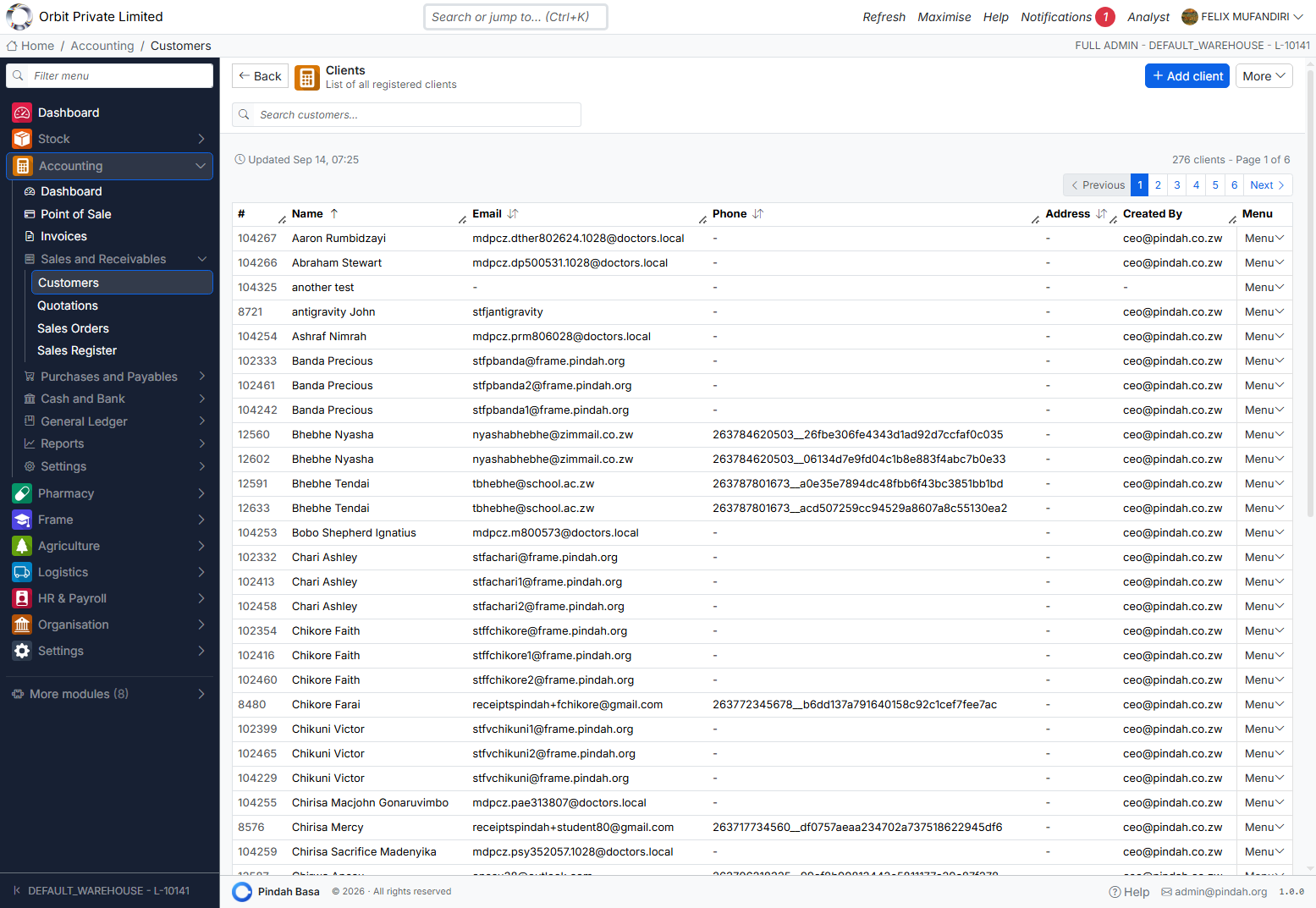
The screen title is Clients.
| Action | Purpose |
|---|---|
| + Add client | New customer |
| Search | Find by name / email / phone |
| More | Import Clients, Import Patients, Export |
| Row Menu | Edit, Delete, View Vehicles |
| View All Vehicles | Fleet / vehicle register (where used) |
Currencies
Path: Accounting → Settings → Currencies
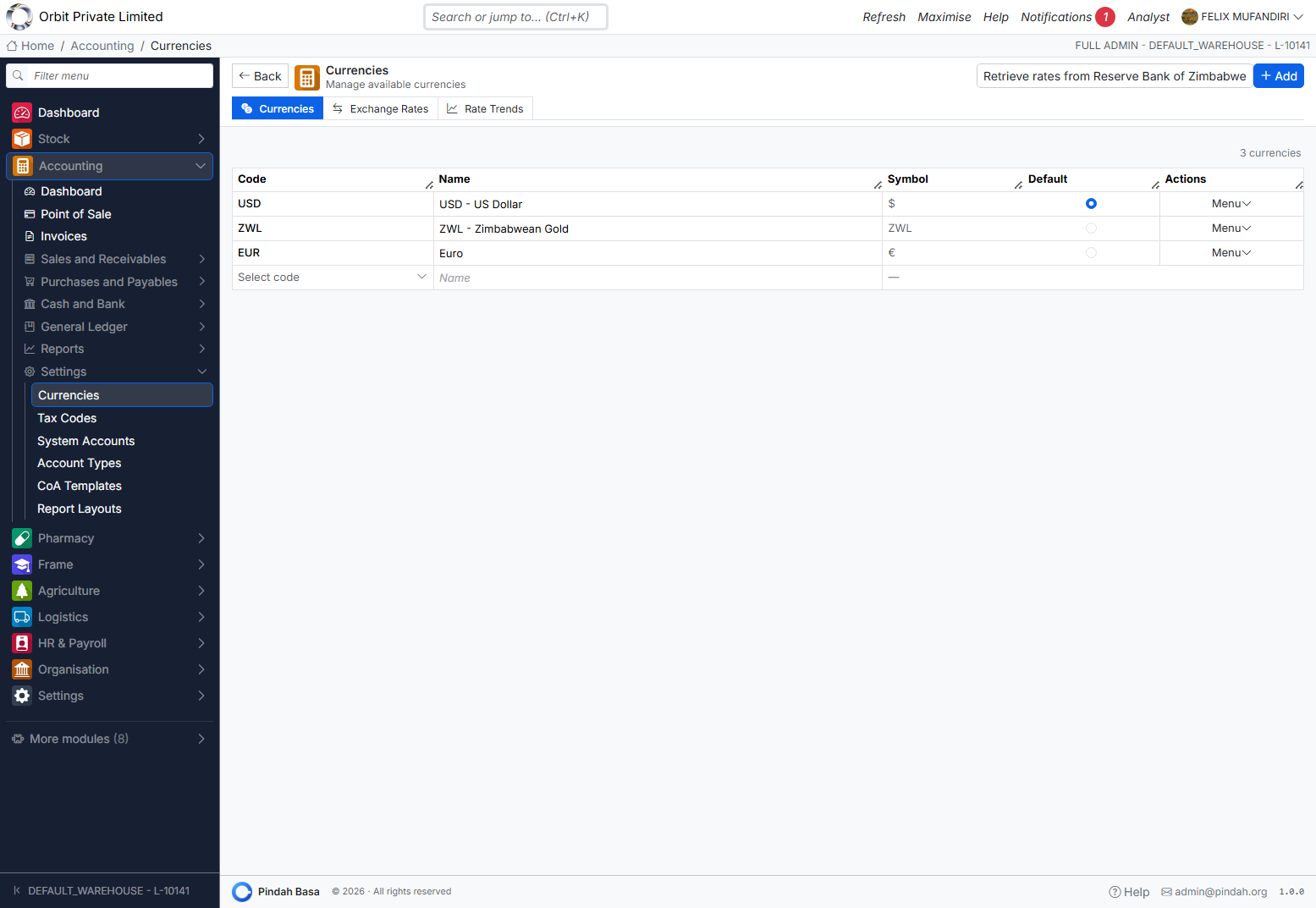
Tabs: Currencies | Exchange Rates | Rate Trends
- Add currencies (USD, ZWL / ZiG, EUR, …)
- Mark one as default
- Maintain exchange rates manually, or Retrieve rates from Reserve Bank of Zimbabwe and Apply
- Review rate trends for FX monitoring
Tax Codes
Path: Accounting → Settings → Tax Codes
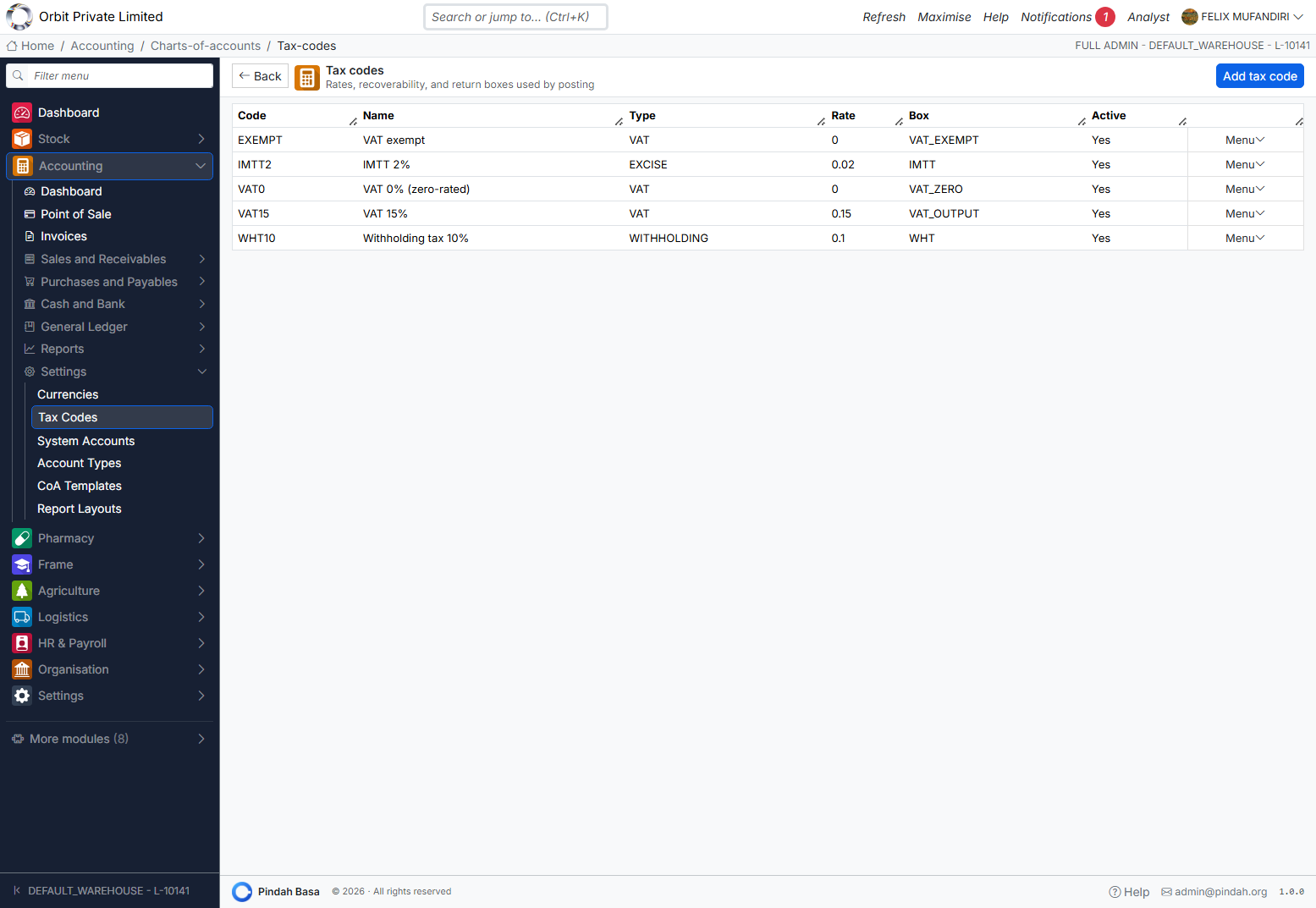
| Column | Example |
|---|---|
| Code | VAT15, EXEMPT, IMTT2, WHT10 |
| Type | VAT, WITHHOLDING, EXCISE, FEE |
| Rate | e.g. 0.15 |
| Box | Reporting box for VAT return |
| Active | Yes / No |
Add tax code to define rate, jurisdiction, output/input/expense accounts, effective dates, recoverable flag. Used by POS, invoices, and posting.
Trial Balance
Path: Accounting → Reports → Trial Balance
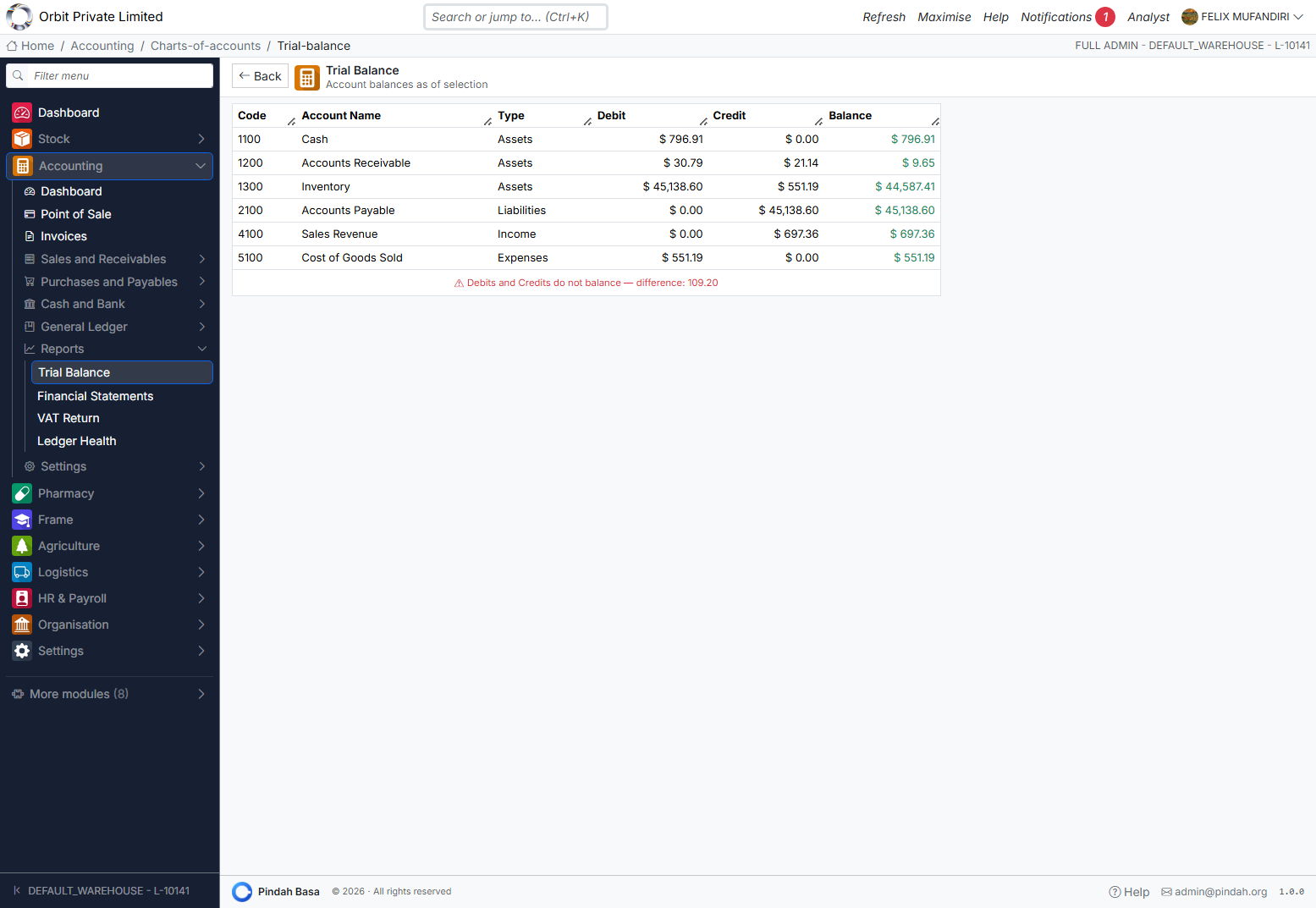
- Set As of date and currency.
- Click Refresh.
- Review Code, Account Name, Type, Debit, Credit, Balance.
- If the banner shows Debits and Credits do not balance, open Ledger Health and Journals to find unbalanced drafts or failed posts.
Financial Statements
Path: Accounting → Reports → Financial Statements
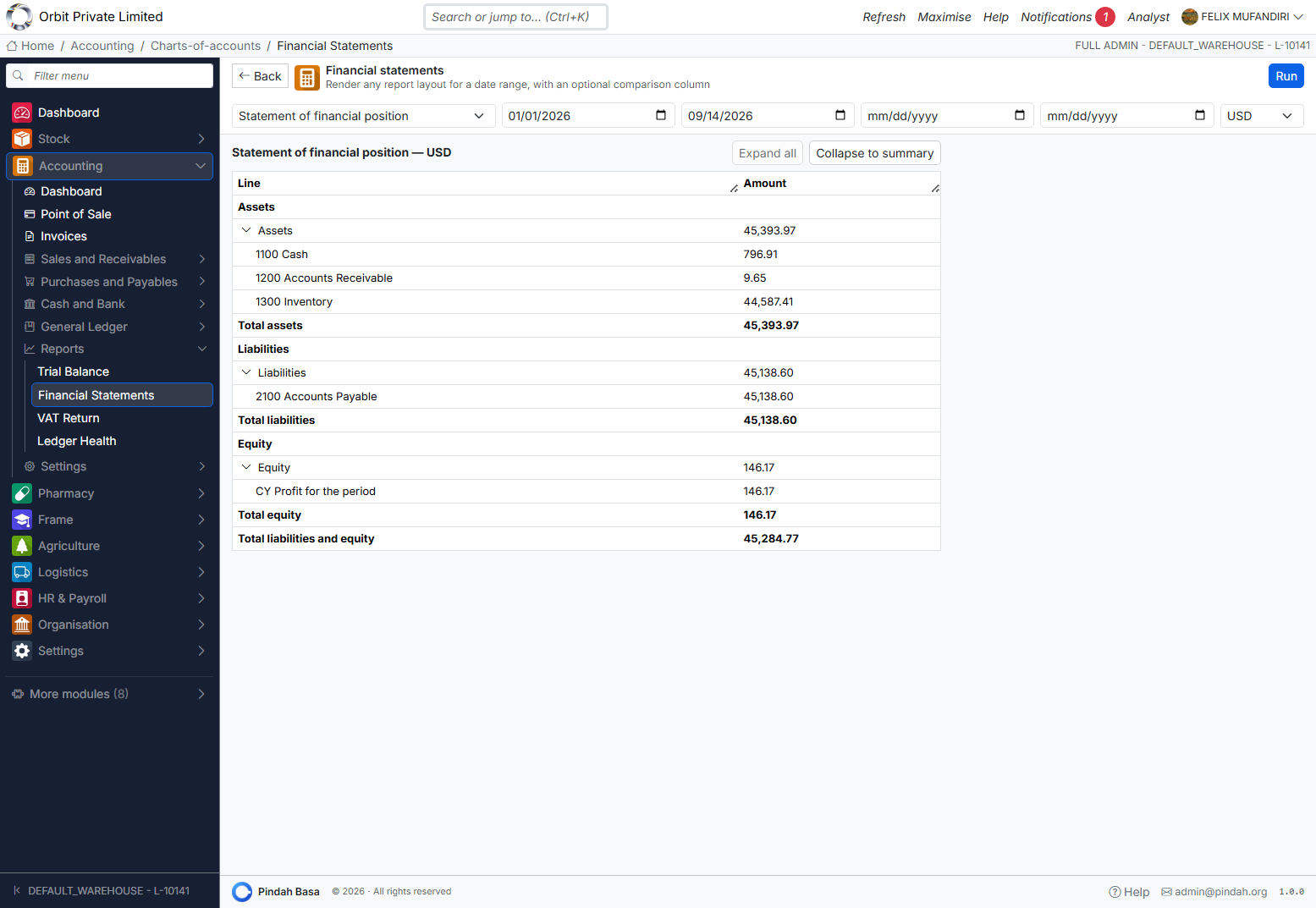
- Choose a layout:
- Statement of financial position (
BS_IFRS_CLASSIFIED) - Income statement IFRS / Simple (
IS_IFRS_DEFAULT,IS_SIMPLE) - Cash flow direct / indirect
- Statement of changes in equity
- Statement of financial position (
- Set date range (and optional compare range).
- Choose currency → Run.
- Use Expand all / Collapse to summary.
Layouts are managed under Settings → Report Layouts (preview, clone defaults to organisation copy).
VAT Return
Path: Accounting → Reports → VAT Return
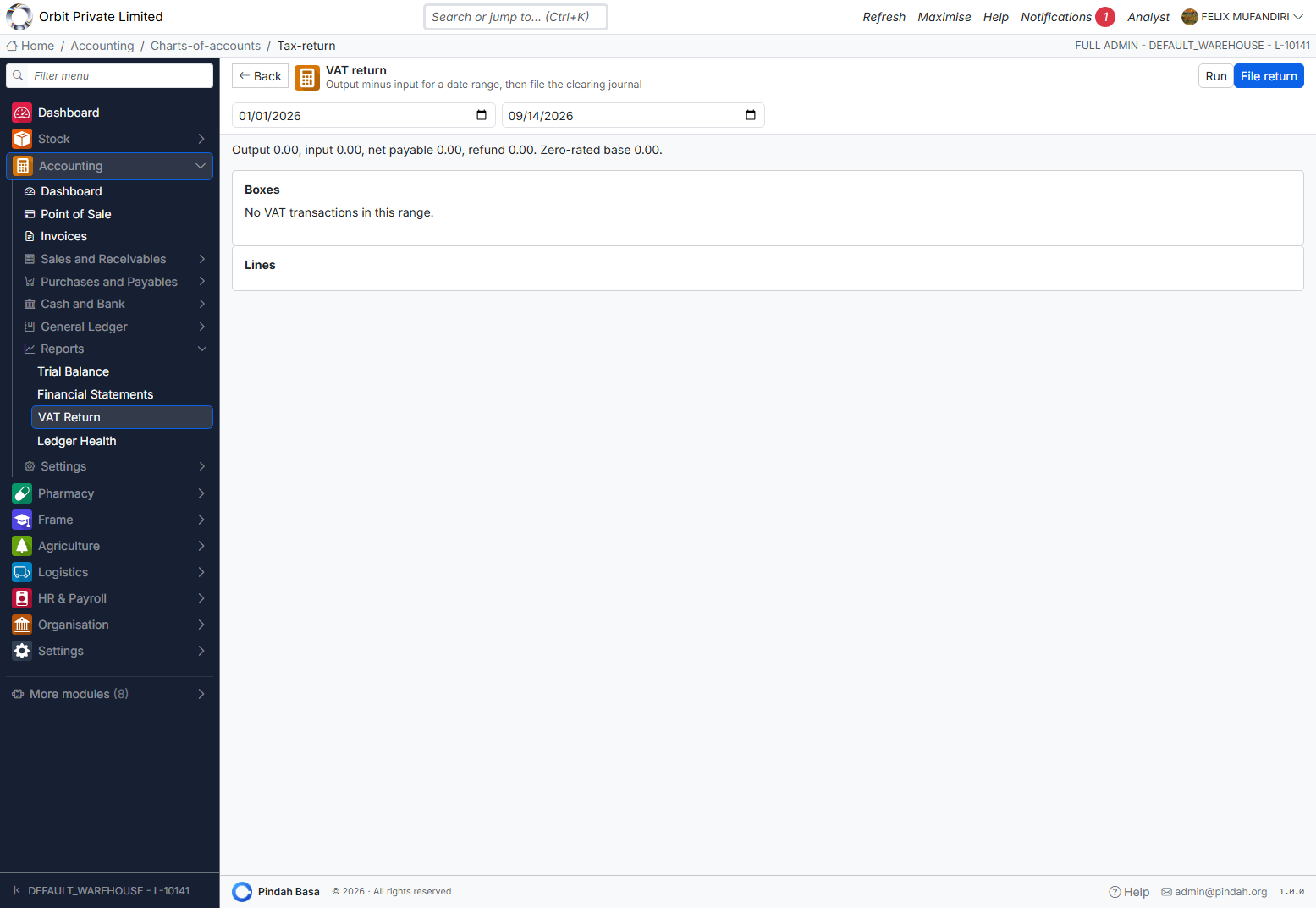
- Set date range → Run.
- Review Output, Input, Net payable / Refund, boxes, and lines.
- When ready, File return — posts the clearing journal (
TAX_RETURN_FILED). Cannot double-file the same period.
Ledger Health
Path: Accounting → Reports → Ledger Health
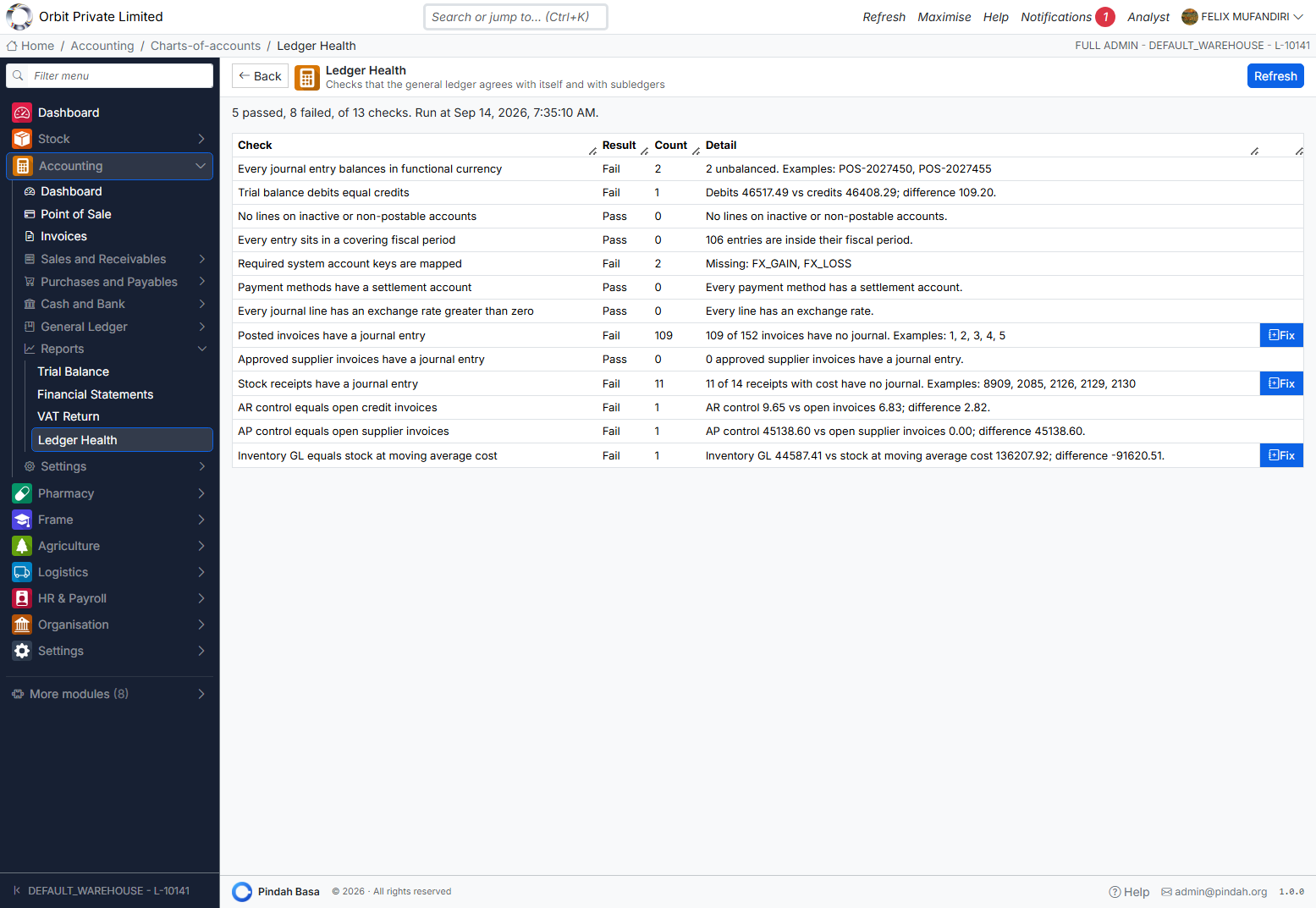
Click Refresh. Each check shows Pass / Fail, count, and detail.
Common Fail examples and what to do:
| Check | Typical fix |
|---|---|
| Unbalanced journal entries | Open the journal → Repair balance (appends Suspense plug), or Ledger Health Fix on ENTRY_BALANCE |
| Trial balance imbalance | Same — find the difference amount |
| Missing system keys | Map on System Accounts |
| Unposted invoices | Click Fix (backfill journals) |
| Unposted GRN / stock receipts | Click Fix |
| AR / AP / Inventory recon | Investigate control vs subledger; Fix inventory where offered |
Treat Ledger Health as the month-end triage board before soft/hard close.
Consolidation and Month-End
Consolidate
From the Financial Dashboard Consolidate action:
- Scans sales and invoices missing journals
- Posts missing GL entries
- Use after imports, historical data, or when Ledger Health shows unposted documents
Month-end checklist
- Post or delete all Draft journals.
- Run Consolidate and clear Ledger Health Fail rows (use Fix where available).
- Import and map any remaining bank statements.
- Run FX revaluation if multi-currency.
- Review Trial Balance (must balance).
- Run Financial Statements.
- Soft-close the period → after final checks, Close.
- File VAT Return for the tax period when due.
- At year end: close all periods → Close year.
How Accounting Connects to Other Modules
| Module | Connection |
|---|---|
| Stock | POS/invoices reduce stock; GRN posts inventory vs GRNI; Issue/Transfer moves stock |
| Procurement | RFQs (no GL); supplier invoices & payments post AP; linked from Purchases and Payables |
| Pharmacy | Dispense can create sales/invoices; same GL |
| HR & Payroll | Payroll approve/pay posts expense and cash journals |
| Projects / Job Cards | Spend Money can link expenses to jobs |
| Organisation | Roles and permissions gate Accounting screens |
Automatic posting events (reference)
| Business event | Typical GL effect |
|---|---|
| POS sale | Dr settlement / Cr revenue (+ VAT); Dr COGS / Cr inventory |
| Invoice (non-Draft) | Dr AR / Cr revenue (+ VAT); COGS as applicable |
| Invoice payment | Dr cash/bank / Cr AR |
| Credit note / reverse | Reverses sale economics |
| Goods received (GRN) | Dr inventory / Cr GRNI |
| Supplier invoice approved | Dr GRNI (+ VAT in) / Cr AP |
| Supplier payment | Dr AP / Cr cash/bank (payment method settlement) |
| Spend Money | Dr expense / Cr Cash |
| Receive Money | Dr Cash / Cr income |
| Tax return filed | Clears VAT output/input into control |
| Year close | Closes P&L to retained earnings |
For the step-by-step purchase-to-pay and cash-expense path, see Purchasing and Accounting Workflow.
Daily and Month-End Routines
Daily
- Open tills; process POS sales (revenue + COGS + stock).
- Raise / send customer invoices and quotations.
- Receive Money / Spend Money for ad-hoc cash (cash-book style expenses and income).
- Record customer invoice payments.
- Receive goods (GRN), capture/approve supplier bills, and Pay Suppliers as deliveries and invoices arrive.
- Glance at Dashboard, Supplier Statement balances, and any Ledger Health failures.
Weekly
- Import bank statements and map lines.
- Fulfil sales orders.
- Follow up overdue invoices (Overdue tab).
- Clear open GRNI by matching outstanding receipts to supplier bills.
- Review journals for unexpected drafts.
Month-end
Follow Consolidation and Month-End. Confirm GRNI is zero or fully explained, and AP control agrees with Supplier Statement totals.
Troubleshooting
| Situation | What to do |
|---|---|
| Cannot Receive/Spend Money | Map CASH on System Accounts |
| POS shows “Select a till” / no products | Choose till; confirm stock at that location |
| Invoice has no journal | Leave Draft → Pending/Paid, or run Consolidate / Ledger Health Fix |
| Trial balance does not balance | Ledger Health → unbalanced journals; Repair balance or Fix ENTRY_BALANCE |
| Period will not close | Open Checklist; clear drafts, failures, recon gaps |
| Payment method fails health check | Set Settles Into account |
| FX revaluation fails | Configure FX_GAIN and FX_LOSS |
| Bank import commit fails | Ensure Cash system account + accounts assigned on lines |
| Wrong invoice number expected later | Numbers are final at create — use Status, do not re-mint |
| Supplier bill not in Accounting | Use Purchases → Supplier Bills (Procurement) |
| Expected AP on goods receipt, but only GRNI moved | Correct — AP posts when the supplier invoice is approved; see Purchasing and Accounting Workflow |
| Cannot see what is owed to suppliers | Purchases → Supplier Statement |
| Paid a supplier with Spend Money; AP still open | Reverse/correct and use Pay Suppliers instead |
| Vendor quote posted to the ledger | Use Procurement → RFQs for supplier quotes; Accounting Quotations are for customers |
Support
- In-app Help and Guides (module key
accounting) - Email admin@pindah.org
- Web pindah.org
- Platform basa.pindah.org
Pindah Basa · Accounting & Financial Management · © Pindah Private Limited